
5+ Best Notion Alternatives To Supercharge Your Workflow
Looking for tools like Notion but with different features or better fit for your team? 🌟
If yes, you’re in the right place. ✅
Notion is a popular tool for taking notes, managing tasks, and working together with your team all in one place. But it’s not perfect for everyone.

Maybe you want more control over tasks, better collaboration, or tools that work faster for large teams. Whatever the reason, there are some amazing options out there.

In this guide, we’ll share the best Notion alternatives available today. These tools are great for managing projects, creating docs, organizing data, and keeping your work in one spot.
Whether you’re a student, freelancer, startup, or a growing team, there’s something here for you.
Let’s dive in and find the right fit for your workflow.
#1. ClickUp 👌
ClickUp is an all-in-one productivity platform that helps you manage tasks, docs, projects, and team collaboration all in one place.
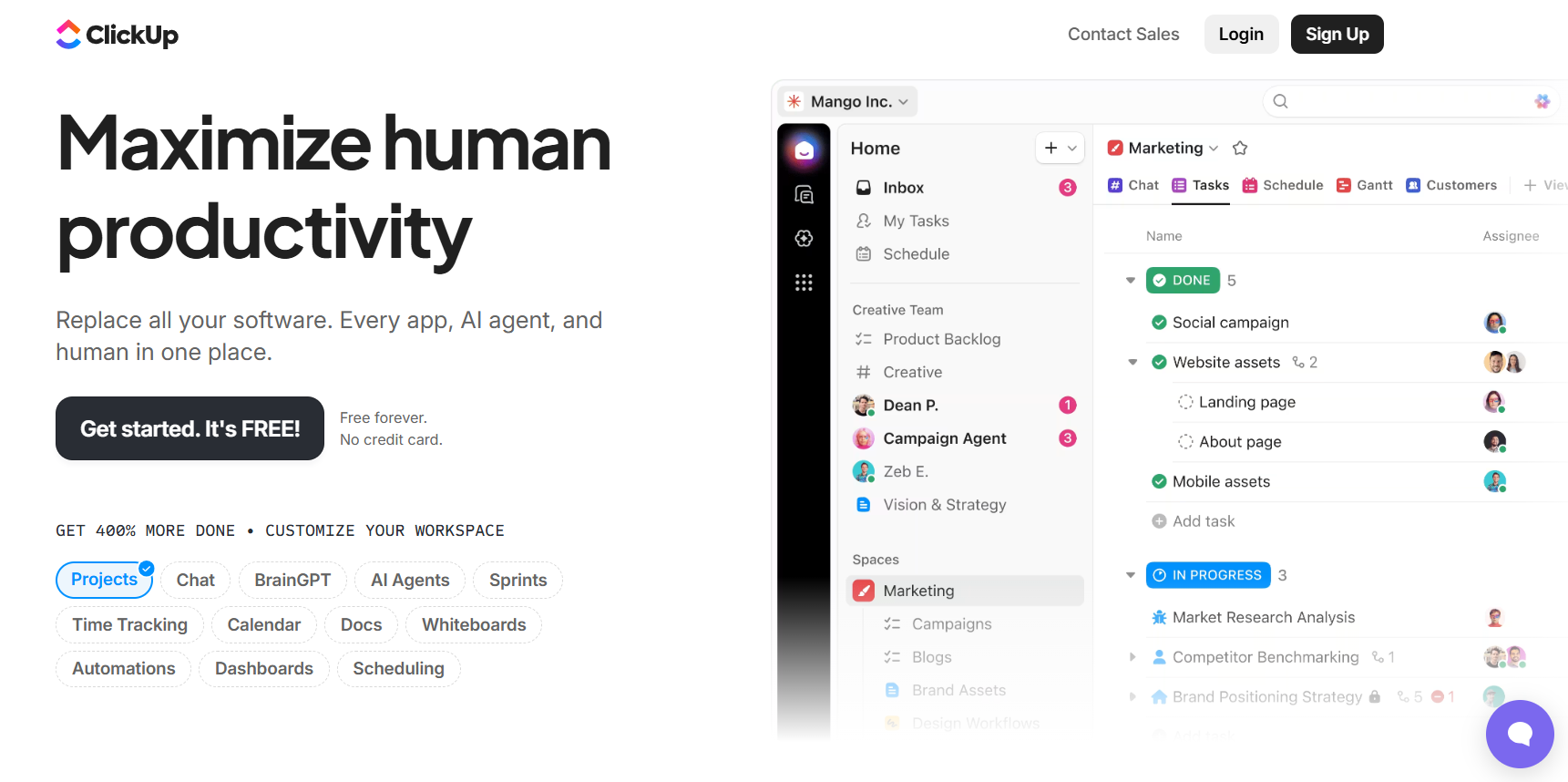
You can customize how you work using different views like List, Board, Calendar, Gantt, and Docs, plus use features like goals, time tracking, automations, and dashboards.
Key Features of ClickUp 🌟
- All-in-One Workspace
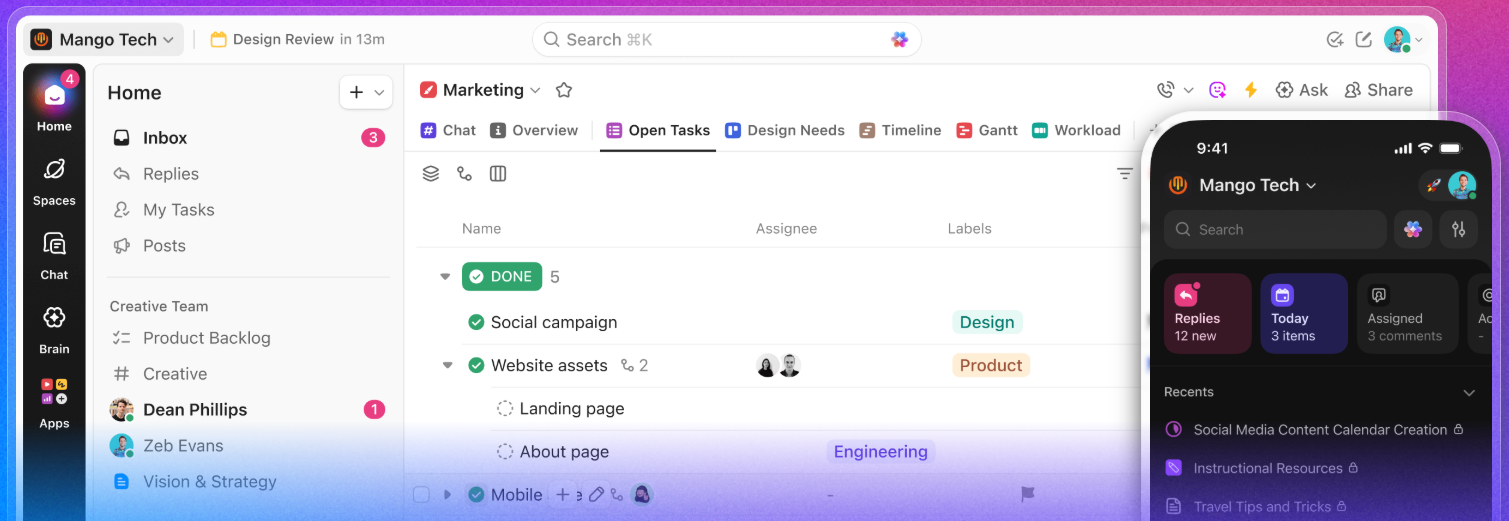
ClickUp combines tasks, projects, docs, goals, calendars, and more in a single platform. This reduces the need for multiple tools, helping teams stay organized and focused. Everything you need to manage work is accessible in one place. - Customizable Workflows
With over 100 features, ClickUp lets you create workflows that fit your team’s unique needs. You can use templates, custom fields, automations, and dashboards to streamline processes and save time. Flexibility ensures your team works the way it wants.
- AI-Powered Productivity
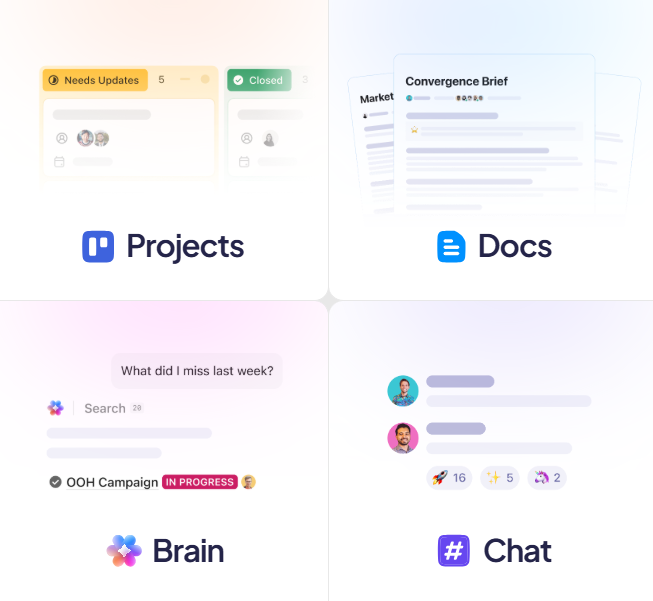
ClickUp Brain and AI agents automate repetitive tasks, answer questions, and even draft content. Teams can save hours daily, get insights faster, and focus on high-value work instead of manual processes.
- Advanced Project Tracking
Track tasks, milestones, and dependencies with multiple views like Kanban, Gantt, Timeline, and Calendar. This makes it easy to monitor progress, identify bottlenecks, and ensure projects are delivered on time. - Collaboration & Communication
ClickUp allows team members to comment, assign tasks, share files, and set priorities in real-time. Notifications, reminders, and integrated chat help keep everyone aligned, boosting teamwork and reducing miscommunication.
Pricing Plans of ClickUp 💰
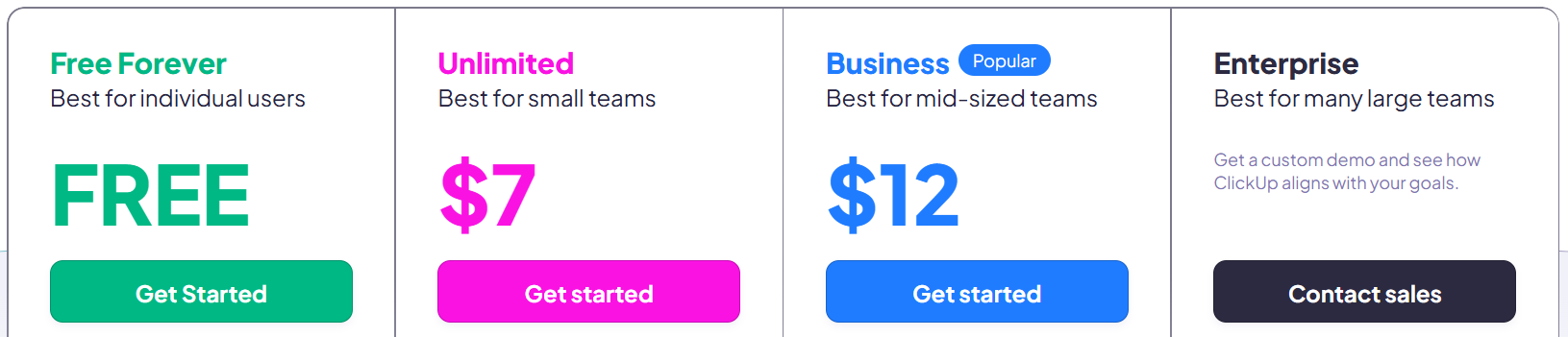
- Free Plan – Best for individuals: Get unlimited tasks, Kanban boards, docs, and 60MB storage, all for free.
- Unlimited Plan ($7/user/month) – Best for small teams: Unlimited storage, integrations, Gantt charts, and time tracking.
- Business Plan ($12/user/month) – Best for mid-sized teams: Adds advanced views, dashboards, whiteboards, workload, and automation.
- Enterprise Plan (Custom Pricing) – Best for large teams: Includes advanced security, permissions, onboarding, and support.
Pros & Cons of ClickUp 🎯
| Pros | Cons |
|---|---|
| All-in-one platform combining tasks, docs, calendars, and AI features. | Learning curve can be steep for new users. |
| Highly customizable workflows and templates for any team. | Mobile app can feel cluttered for smaller screens. |
| AI-powered ClickUp Brain and Super Agents save hours daily. | Some advanced features require higher-tier plans. |
| Supports multiple views: Kanban, Gantt, Timeline, Calendar, Whiteboards. | Occasional performance lag with very large projects. |
| Unlimited integrations with apps like Slack, Google Drive, Jira, and more. | |
| Advanced reporting, dashboards, and workload management for teams. | |
| Trusted by millions of users with 24/7 support and enterprise-grade security. |
#2. Monday.com
Monday.com is an easy-to-use project management and team collaboration tool that helps teams plan, track, and complete their work in one place.
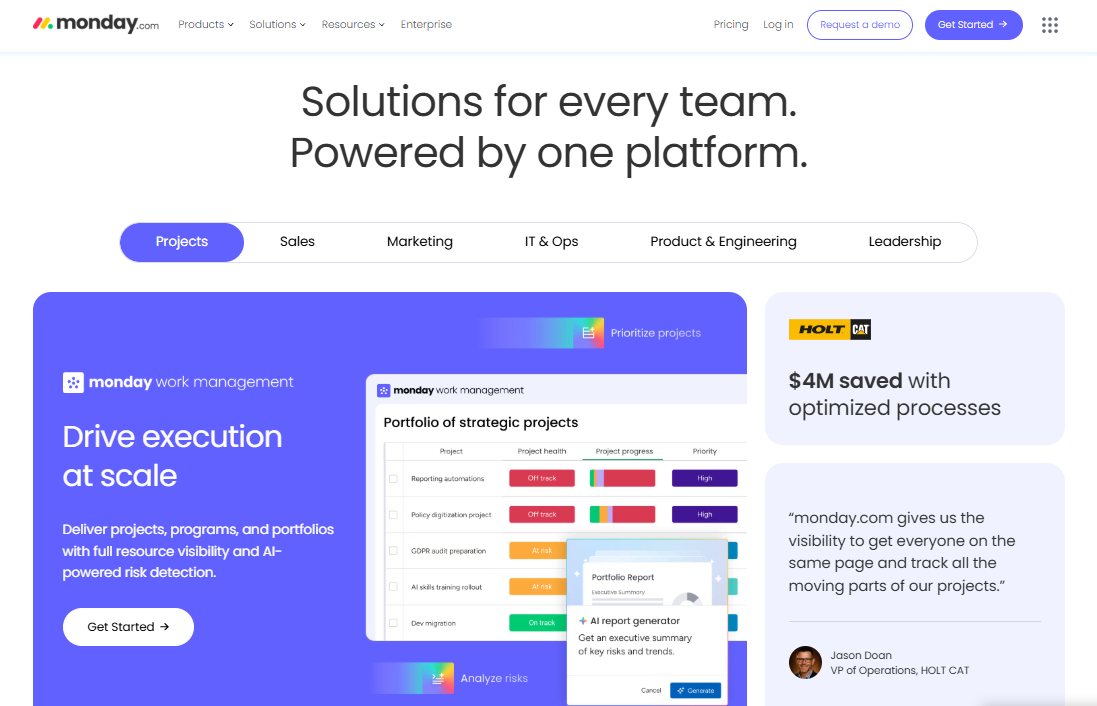
Think of it as a central hub where you can organize tasks, projects, and workflows without juggling multiple apps or spreadsheets.
Key Features of Monday.com 🌟
- All-in-One Workspace: Manage projects, tasks, documents, clients, and timelines in one centralized place.
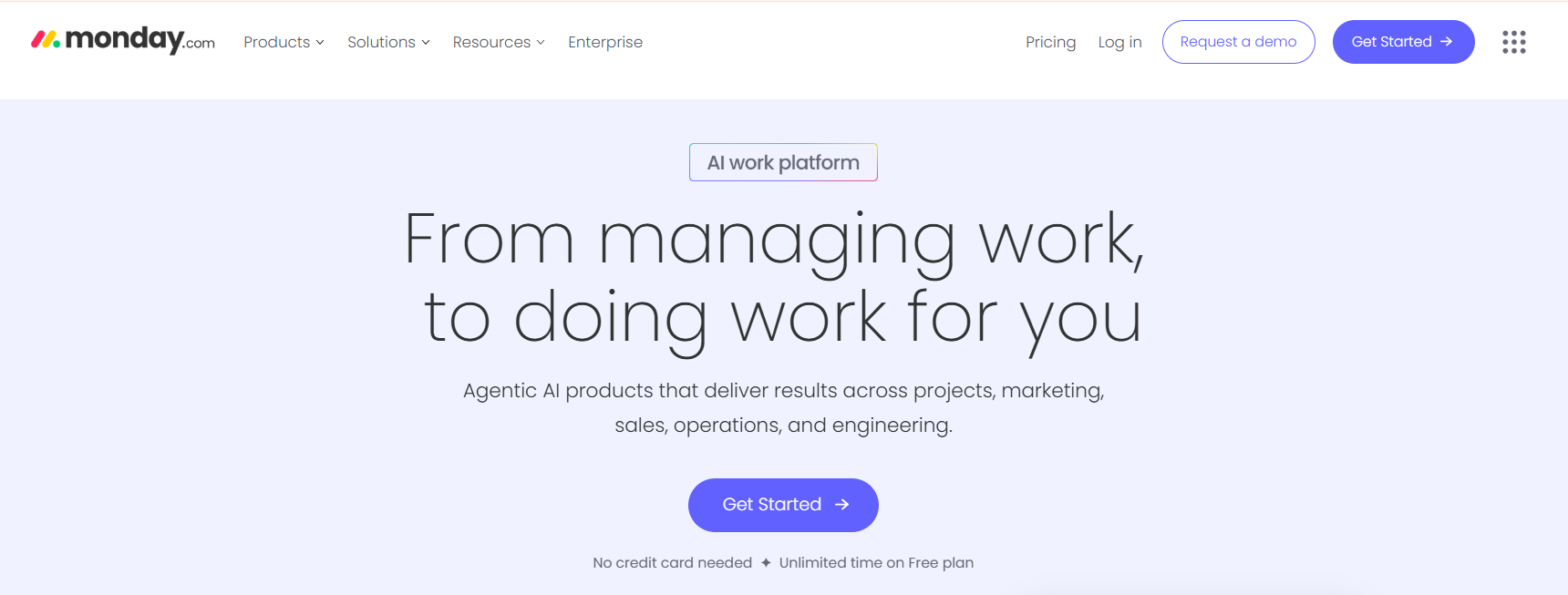
- Custom Workflows: Build automated workflows tailored to your business, saving time and reducing manual work.
- Modular Apps: CRM, Dev, HR, IT, Operations, and more — all customizable.
- Visual Planning Tools: Gantt charts, calendars, kanban boards, and dashboards for visual organization.
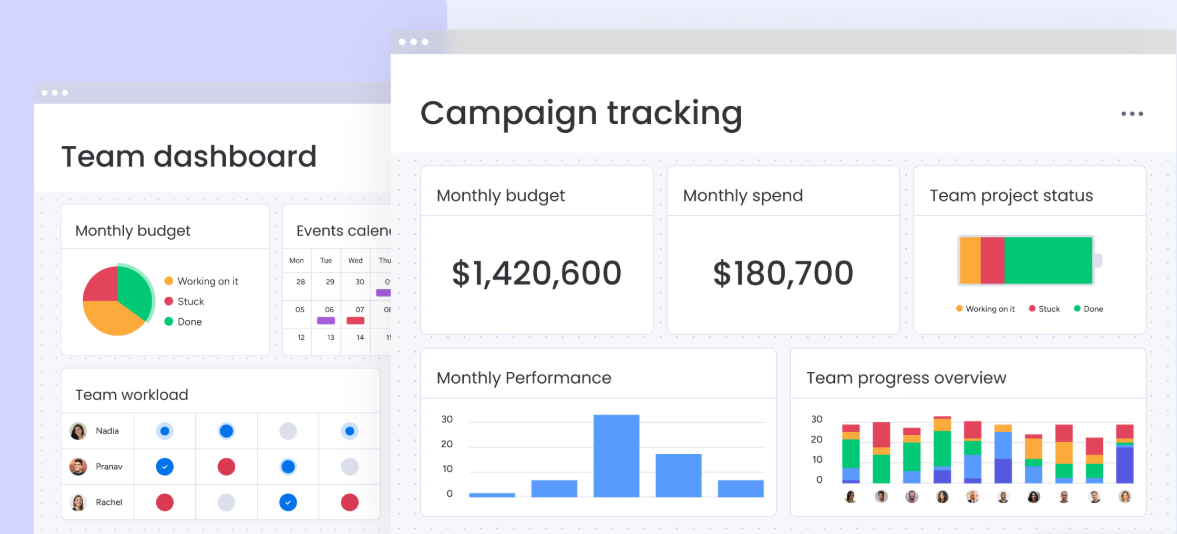
- Scalable for All Teams: Whether you’re a solo freelancer or managing a team of 100+, Monday.com adapts to your size and style.
- Mobile Friendly: Use it from your phone or tablet with native apps.
- Integration-Ready: Connect with Slack, Google Workspace, Zapier, Outlook, Zoom, and 100+ other tools.
Pricing Plans of Monday.com 💰
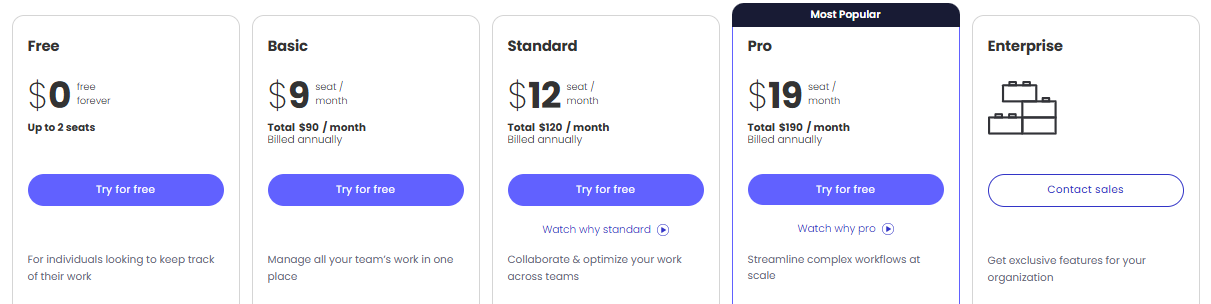
- Free Plan – For individuals: Track personal work with up to 2 seats, 3 boards, 3 docs, and mobile access — totally free.
- Basic Plan ($9/seat/month) – Best for small teams: Unlimited items, free viewers, 5GB storage, and 1-board dashboard.
- Standard Plan ($12/seat/month) – Great for collaboration: Includes timeline, calendar, automations, integrations, and 5-board dashboards.
- Pro Plan ($19/seat/month) – For growing teams: Adds time tracking, private boards, chart view, formulas, and 25K automation actions.
- Enterprise Plan (Custom Pricing) – For large teams: Includes portfolio management, advanced permissions, reporting, and 50-board dashboards.
Pros/Cons of Monday.com 📈
| Pros | Cons |
|---|---|
| User-friendly interface with easy onboarding | Pricing can be high for small teams |
| Highly customizable workflows for any team | Some advanced features require higher plans |
| Robust automation and integration options | Learning curve for very complex features |
| Supports multiple views: Kanban, Gantt, Timeline, Calendar | Can feel overwhelming for very small projects |
| AI features to improve efficiency and track risks | |
| Excellent collaboration with real-time updates | |
| Scalable for small teams to large enterprises |
#3. Coda
Coda is an all-in-one collaborative workspace that blends the flexibility of documents with the power of apps. It lets teams create documents that are dynamic, interactive, and connected combining text, tables, buttons, and automations into a single platform.
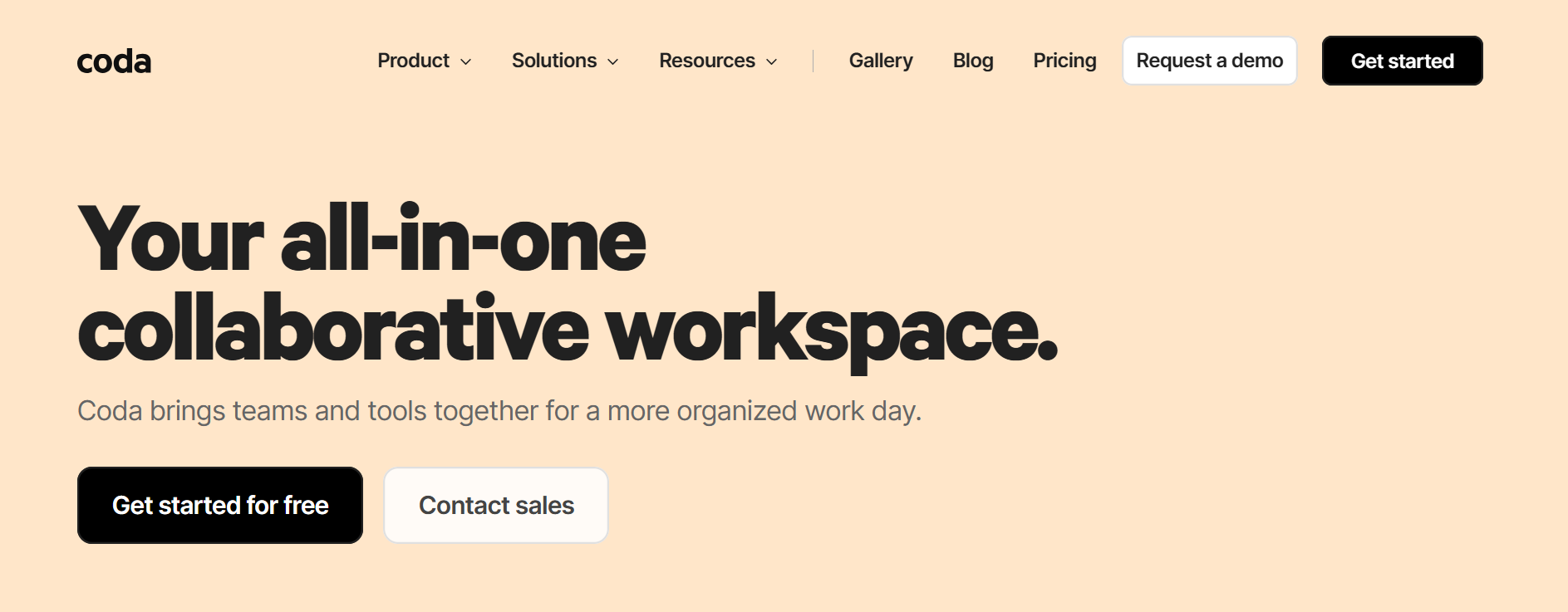
It’s used by 50,000+ teams like Figma, Uber, and The New York Times to replace docs, spreadsheets, wikis, trackers, and even lightweight apps all in one unified tool.
Key Features of Coda 🌟
- All-in-One Docs That Act Like Apps
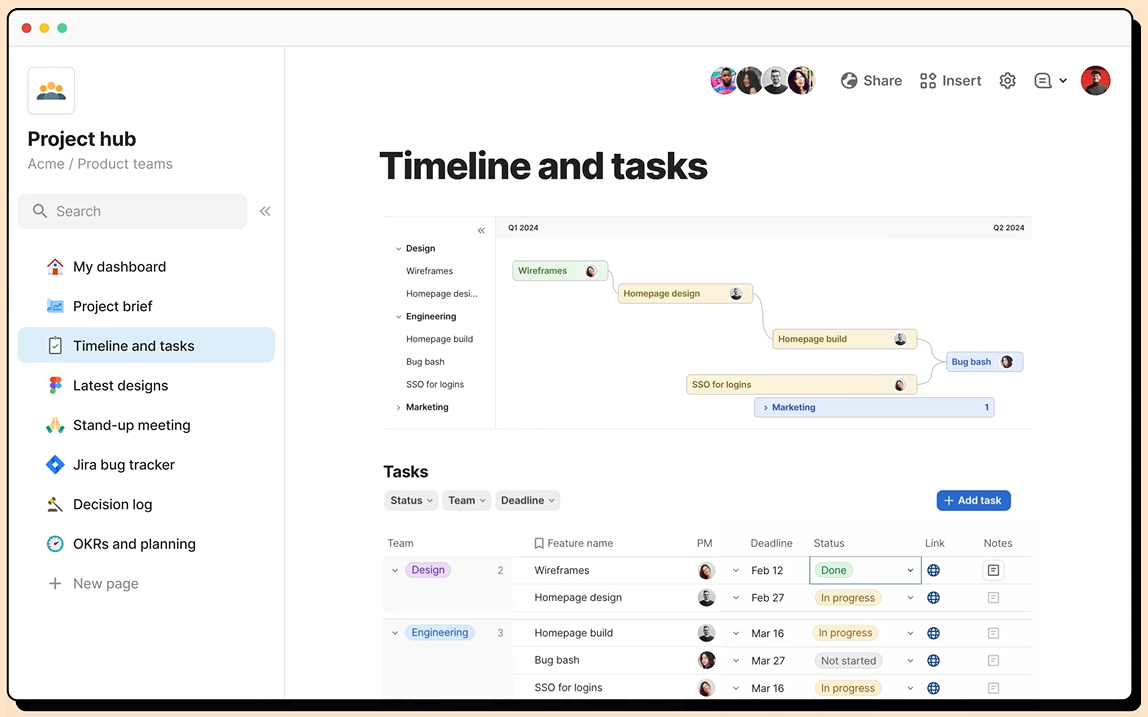
Coda turns regular documents into powerful, interactive tools. You can add tables, buttons, and formulas to create dynamic pages that function like lightweight apps ideal for building wikis, dashboards, trackers, and more, all within one platform. - Connected Tables with Live Sync
Unlike traditional spreadsheets, Coda’s tables can talk to each other. Changes made in one view update automatically everywhere else, helping teams avoid manual edits and keep data clean and up to date across the doc.
- Coda AI Assistant
Coda AI helps you work faster by generating summaries, writing content, filling tables, and answering questions. It works directly inside your doc, so you can brainstorm ideas or automate tasks without switching tools or tabs. - 600+ Integrations with Everyday Tools
Coda connects seamlessly with tools like Slack, Jira, Google Calendar, Figma, and more. You can embed live content, automate updates, and trigger actions across platforms making Coda the central place for all your workflows. - No-Code Custom Workflows
With drag-and-drop building blocks, you can design your own custom workflows no coding needed. From product roadmaps to team hubs, Coda lets you create flexible setups that match your exact needs using templates, buttons, and automation.
Pricing Plans of Coda 💰
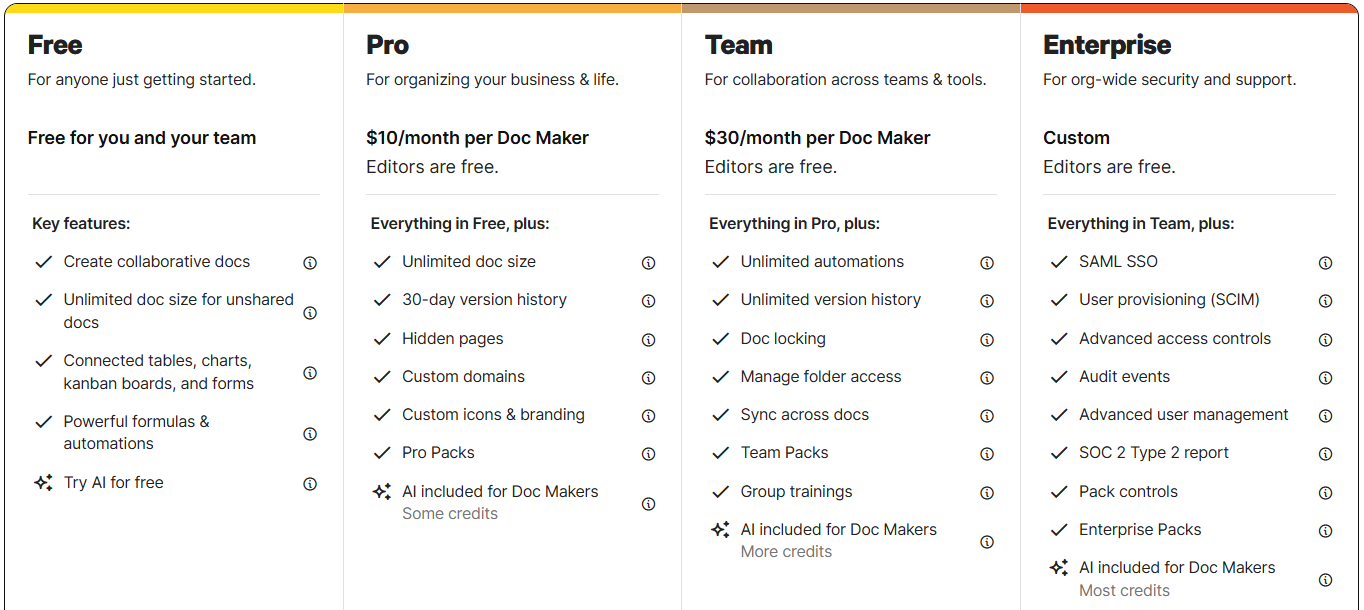
- Free Plan – For individuals or small teams: Create collaborative docs, use connected tables, automations, and try Coda AI for free.
- Pro Plan ($10/month per Doc Maker) – Ideal for freelancers and small businesses: Unlock unlimited doc size, hidden pages, custom branding, and Pro-level Packs.
- Team Plan ($30/month per Doc Maker) – Designed for growing teams: Get unlimited automations, doc locking, syncing across docs, and Team-level Packs.
- Enterprise Plan (Custom Pricing) – Best for large organizations: Includes SSO, audit logs, advanced user controls, enterprise Packs, and priority support.
Pros & Cons of Coda 🚀
| Pros | Cons |
|---|---|
| Blends docs, spreadsheets, and apps into one flexible workspace | Takes time to fully understand all features for new users |
| Only charges for Doc Makers, not all team members | Mobile app experience is more limited compared to desktop |
| Coda AI helps generate content, automate tasks, and analyze data | Some useful Packs and features locked behind higher plans |
| Powerful connected tables that sync across docs in real time | Limited offline functionality |
| 600+ integrations for tools like Slack, Jira, Figma, and more | |
| Ideal for creating team hubs, wikis, OKR trackers, and product docs | |
| No-code tools to build buttons, forms, automations, and more |
#4. Asana
Asana is a powerful work management platform that helps teams plan, organize, and track their work in one place. It brings clarity and structure to everyday tasks, long-term goals, and cross-team projects all while integrating AI to boost productivity.
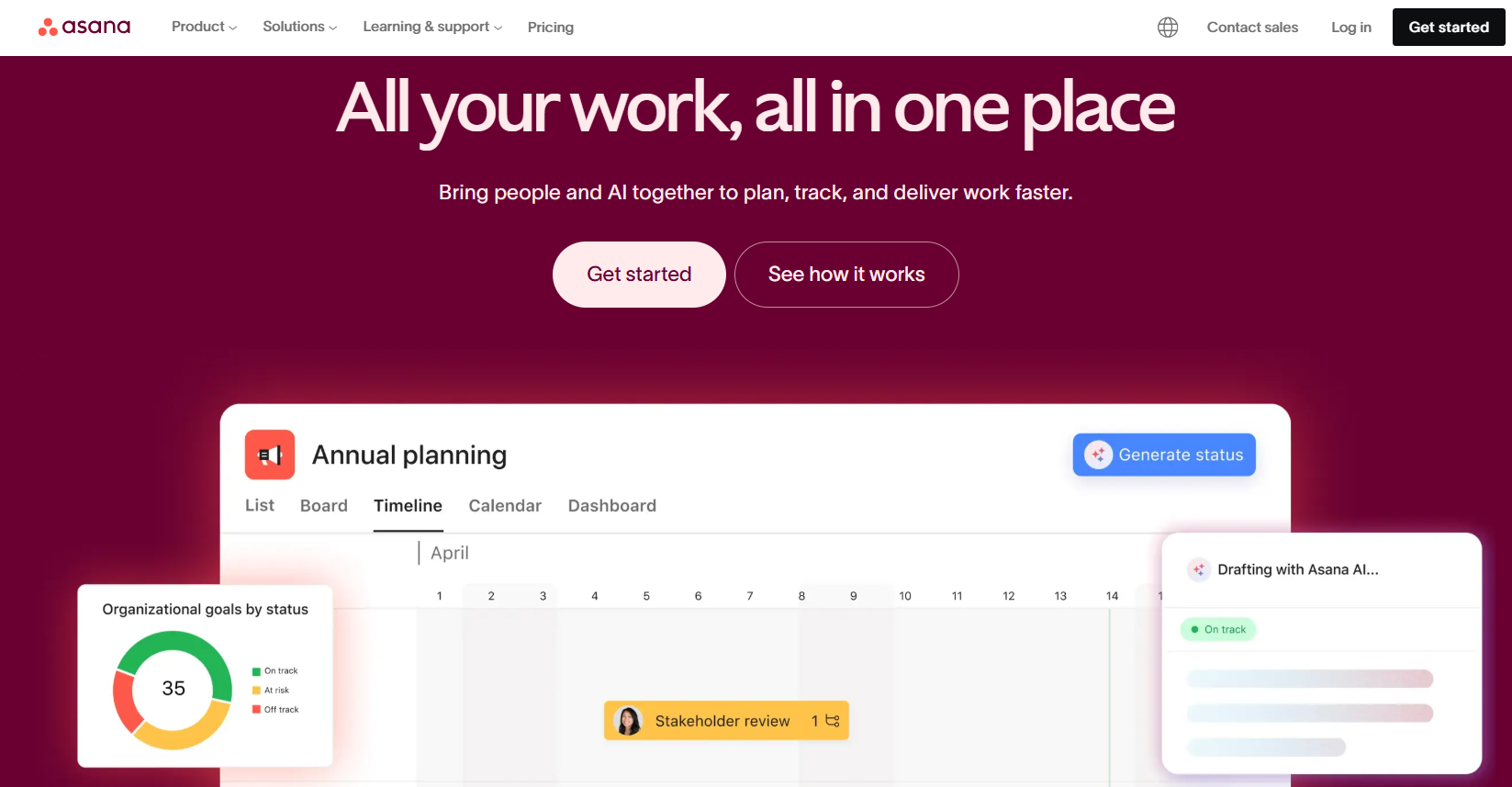
Used by top companies like Amazon, Accenture, and Johnson & Johnson, Asana makes it easier to collaborate, set priorities, and stay aligned across teams. From startups to large enterprises, Asana is trusted to deliver work faster and with greater accountability.
Key Features of Asana ✨
- AI-Powered Work Management
Asana AI helps teams automate tasks, generate updates, and prioritize work smarter. With AI understanding your team’s goals and context, you get personalized insights that drive faster and better decision-making. - Goal Tracking and Alignment
Asana lets you connect daily work with strategic business goals, ensuring everyone moves in the same direction. This helps teams stay focused, measure progress, and improve accountability at every level.
- Over 300+ Integrations
Asana integrates seamlessly with tools like Slack, Microsoft Teams, Google Workspace, Zoom, and Salesforce. You can connect your existing software stack to centralize workflows and reduce tool-switching. - Templates and Easy Onboarding
With ready-to-use templates for project launches, marketing campaigns, hiring plans, and more, teams can get started quickly. Asana also offers guided tours and demos for a smoother onboarding experience. - Scalable for Teams of Any Size
Whether you’re a small startup or a global enterprise, Asana supports complex workflows, multi-team collaboration, and enterprise-level security growing with your organization’s needs.
Pricing Plans of Asana 💰
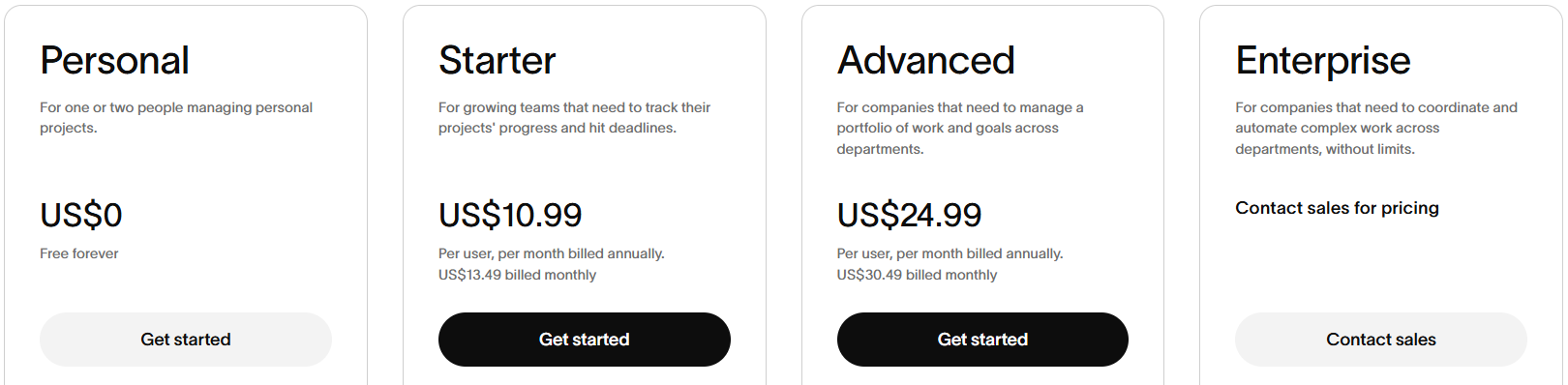
- Personal (Free) – Best for individuals or two-person teams: Manage unlimited tasks, projects, and messages with calendar and board views.
- Starter ($10.99/user/month) – For growing teams: Includes AI features, timeline & Gantt views, forms, automations, dashboards, and no user limits.
- Advanced ($24.99/user/month) – Great for departments: Adds goals, portfolios, workload tracking, advanced forms, approvals, and time tracking.
- Enterprise (Custom Pricing) – Ideal for large companies: Includes workflow bundles, resource management, SAML/SCIM, admin controls, and 24/7 support.
Pros & Cons of Asana 🚀
| Pros | Cons |
|---|---|
| Intuitive and clean interface that’s easy for beginners to navigate | Can get expensive for larger teams as features scale up |
| Powerful AI tools to automate tasks, suggest actions, and save time | Limited offline access and functionality on mobile |
| 300+ integrations with popular apps like Slack, Zoom, and Salesforce | Reporting customization is limited in lower-tier plans |
| Scales well from individual use to large enterprise project management | Learning curve for advanced features like portfolios and workflows |
| Offers different views like list, board, calendar, timeline, and Gantt | |
| Built-in goals and OKR tracking to align team efforts with strategy | |
| Excellent templates, training, and support resources available |
#5. Obsidian
Obsidian is a powerful, free note-taking and knowledge management app designed for privacy, flexibility, and long-term thinking. It works offline by default, stores all notes locally on your device, and supports markdown for fast, portable note editing.
With thousands of plugins, themes, and advanced features like graph views and Canvas, Obsidian is perfect for building a second brain, managing projects, journaling, and exploring ideas all in a space you fully control.
Key Features of Obsidian ✨
- Local-First, Private Storage
Obsidian stores all your notes locally, giving you full control and privacy your data never leaves your device. It’s offline-first, meaning you can work anywhere without needing an internet connection. No one else, not even Obsidian, can access your notes.
- Backlinking and Note Linking
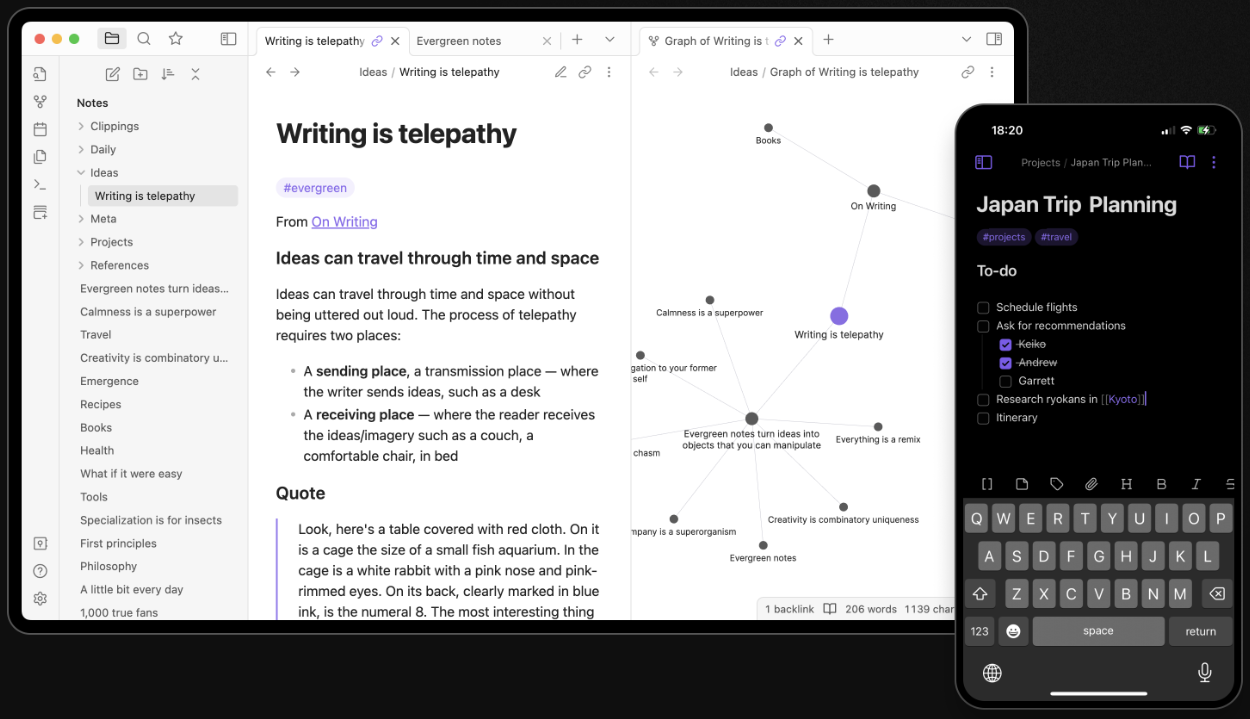
You can connect any idea to another using internal links. This helps you build a personal knowledge base, just like a private Wikipedia. The more you link notes, the easier it is to discover patterns and relationships in your thinking. - Interactive Graph View
Visualize how your thoughts and topics are connected through an interactive graph. As you write and link more notes, the graph grows, helping you spot clusters, gaps, and new directions to explore in your ideas.
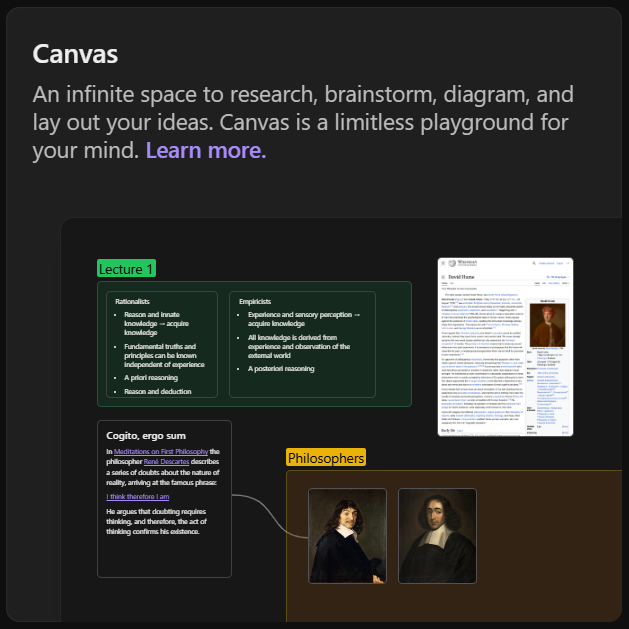
- Canvas for Visual Thinking
Canvas offers an infinite whiteboard where you can drag, drop, and arrange notes, images, links, and ideas. It’s perfect for brainstorming, mind-mapping, and research planning — with complete freedom to structure information visually. - Extensive Plugin System
With thousands of community plugins and a flexible open API, you can turn Obsidian into anything from a task manager to a knowledge base or a writing app. It adapts to your personal workflow and grows with your needs.
Pricing Plans of Obsidian 💰
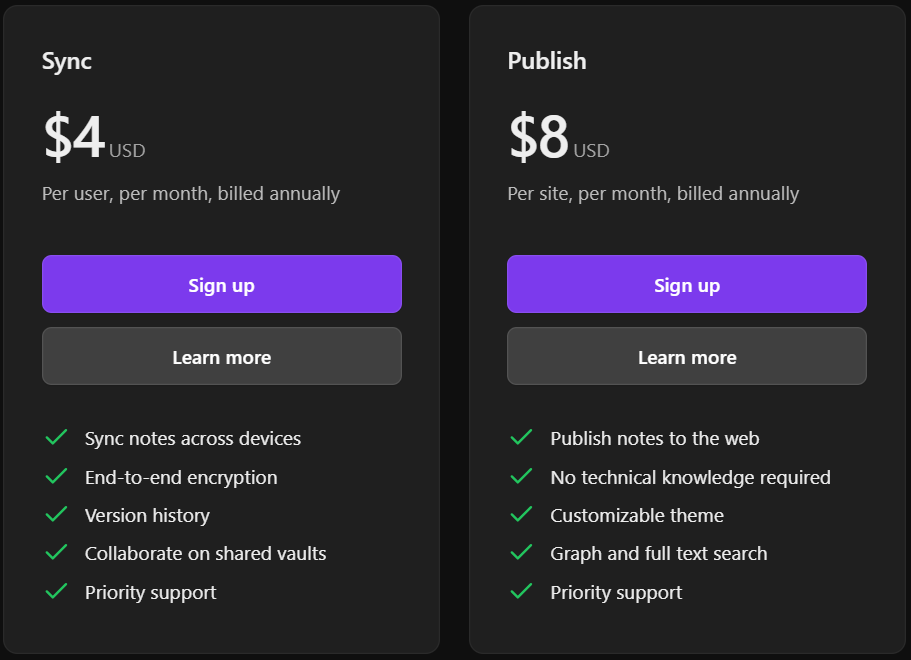
- Free Plan – Use Obsidian with all core features forever, with no sign-up, no ads, and full offline access.
- Sync Add-on ($4/month/user billed annually) – Sync notes across devices with end-to-end encryption, version history, and shared vault support.
- Publish Add-on ($8/month/site billed annually) – Instantly publish your notes as a website with themes, search, and graph view with no coding needed.
Pros & Cons of Obsidian 🎯
| Pros | Cons |
|---|---|
| Free to use with no sign-up, ads, or locked features | Can feel overwhelming for beginners unfamiliar with Markdown or plugins |
| Stores notes locally for full privacy and offline access | Lacks built-in real-time collaboration for teams |
| Highly customizable with thousands of plugins and themes | Mobile app is less powerful than the desktop version |
| Supports backlinks and graph view to visualize note connections | Some advanced features require paid add-ons |
| Canvas offers a flexible whiteboard for visual thinking | |
| Publish add-on lets you turn notes into a public knowledge base | |
| Cross-platform and sync-ready with optional encrypted sync service |
#6. Microsoft OneNote
Microsoft OneNote is a digital notebook that lets you capture, organize, and share notes across devices. Integrated into Microsoft 365, it offers a flexible workspace for everything from personal thoughts to team meeting notes and project outlines.
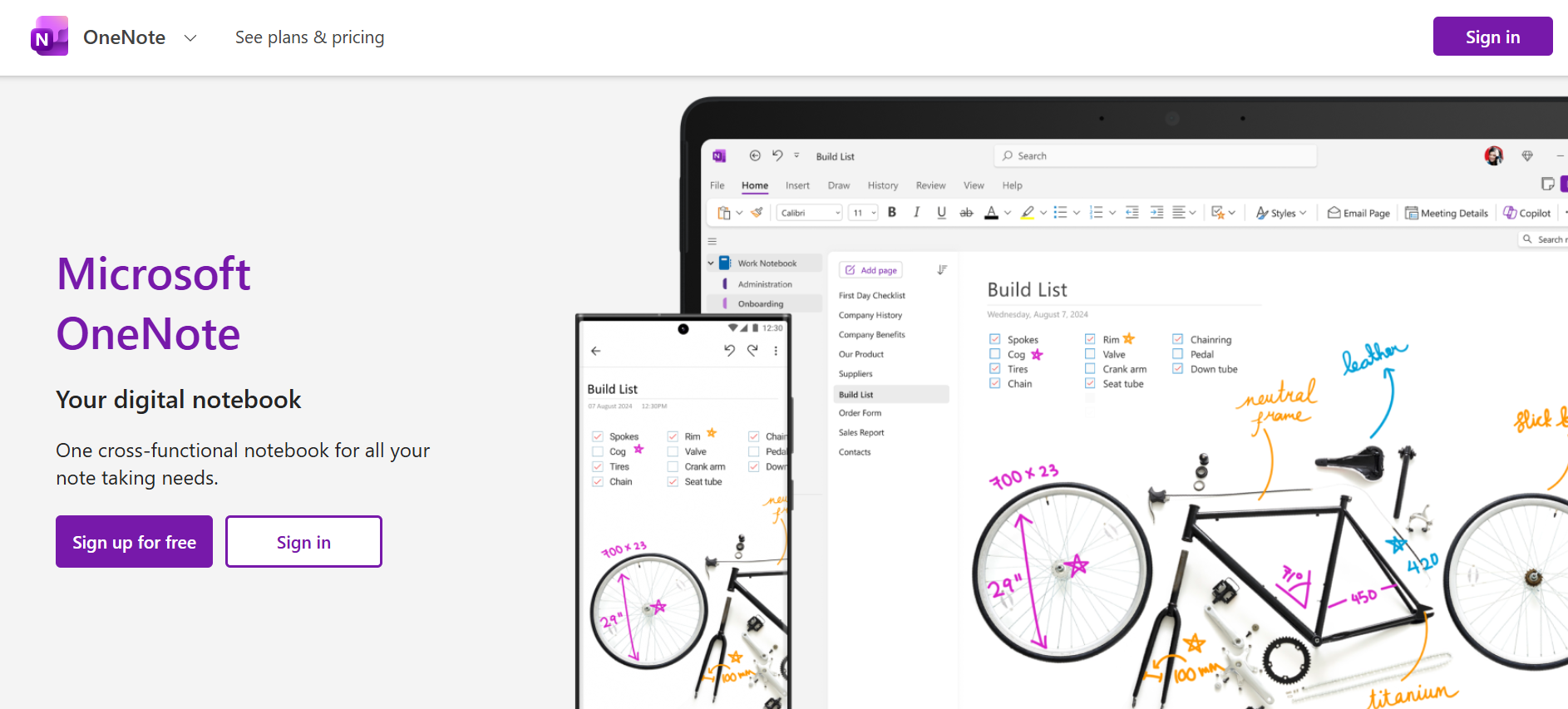
With support for text, handwriting, images, web clippings, and AI-powered tools like Copilot, OneNote is ideal for students, professionals, and teams looking to centralize their ideas in a smart, cloud-connected notebook.
Key Features of Microsoft OneNote 🔥
- Cross-Platform Note Access
OneNote works on Windows, Mac, iOS, Android, and web so you can access your notes anywhere, anytime. Sync your notebooks across devices with Microsoft 365 cloud storage. It’s perfect for staying productive on the go. - AI-Powered Copilot Integration
With Copilot, OneNote helps you brainstorm, draft content, generate to-do lists, and organize your notes using natural prompts. It acts like an AI-powered assistant embedded right into your notebook.
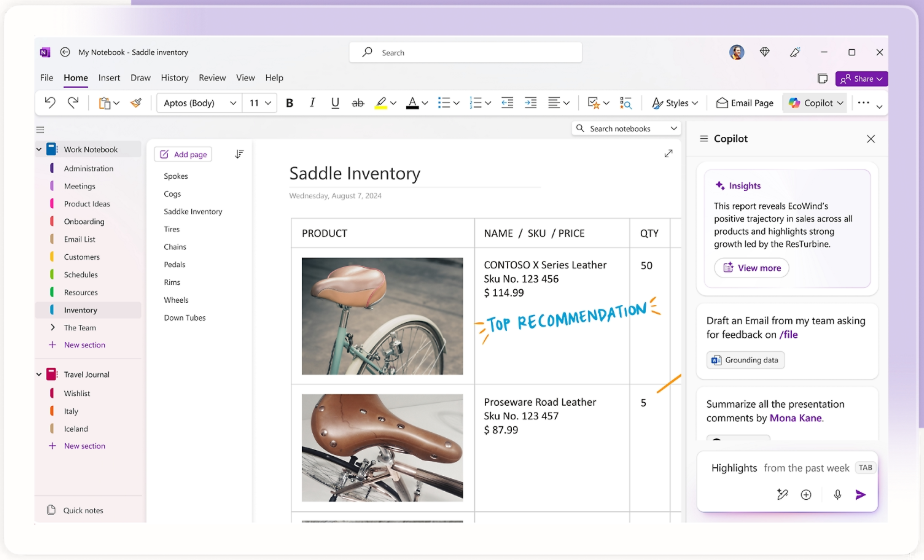
- Multimedia Note Support
You can add text, drawings, audio recordings, PDFs, screenshots, and even embedded files into your notes. OneNote gives you a truly rich and flexible format to capture all types of information in one place. - Notebook & Section Organization
Organize your content into notebooks, sections, and pages for easy navigation. Whether you’re managing class notes or a project outline, OneNote keeps everything structured and searchable. - Included with Microsoft 365
OneNote is part of Microsoft 365 Personal ($9.99/month) and Family ($12.99/month for up to 6 people), giving access to cloud storage, AI features, and desktop apps like Word, Excel, PowerPoint, and Outlook.
Pricing Plans of Microsoft OneNote 💰
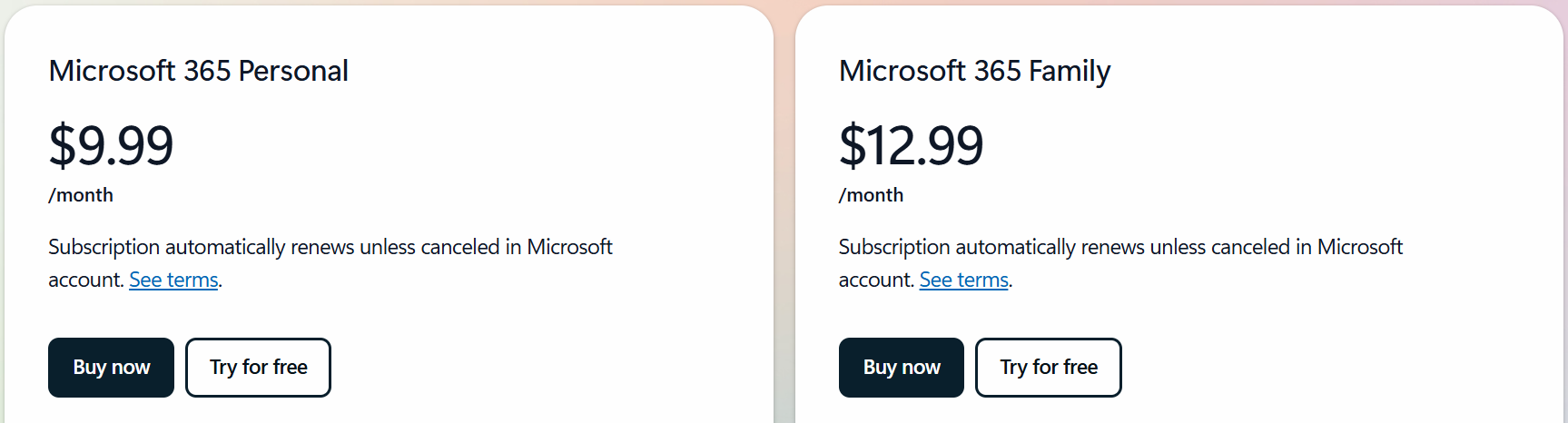
- Microsoft 365 Personal – $9.99/month
For 1 person: Includes OneNote with Copilot, 1TB cloud storage, and access across 5 devices. - Microsoft 365 Family – $12.99/month
For up to 6 people: Includes OneNote with Copilot, 6TB total cloud storage (1TB per person), and multi-device access.
Pros & Cons of Microsoft OneNote 🚀
| Pros | Cons |
|---|---|
| Works across all devices and platforms with full syncing capabilities | Interface can feel cluttered to new users |
| Integrated AI (Copilot) helps organize notes and generate content | Requires Microsoft 365 subscription for full features |
| Supports text, handwriting, drawings, images, and web clippings | Offline performance can vary by platform |
| Organizes notes using notebooks, sections, and pages for easy navigation | Limited export options compared to competitors |
| Included with Microsoft 365 alongside Word, Excel, and Outlook | |
| Supports shared notebooks for team collaboration | |
| Mobile apps available for both Android and iOS with cloud sync |
Which Is Best Notion Alternative? 🏆
With so many powerful productivity tools available, choosing the right Notion alternative depends on your specific needs.
Tools like Coda and Obsidian are fantastic for personal knowledge management, while Asana, Monday.com, and Microsoft Loop shine in team collaboration and task tracking. OneNote is great for straightforward note-taking.

Why ClickUp Wins? 🥇

ClickUp is the most complete and flexible Notion alternative. It offers everything Notion does and more within one powerful workspace.
From creating docs, managing tasks, and building dashboards, to automating workflows and integrating with 1,000+ tools, ClickUp brings unmatched versatility.
What really sets ClickUp apart is its customizability and scalability. Whether you’re a solo creator or an enterprise team, ClickUp adapts to your workflow.
It supports multiple views (List, Board, Calendar, Gantt), allows real-time collaboration, and even includes AI features to speed up your work. Plus, its generous free plan makes it incredibly accessible for anyone getting started.
Conclusion 🔥
Choosing the right Notion alternative comes down to what fits your workflow best. Whether you want better task management, deeper customization, or a more powerful knowledge base, there’s a tool on this list that can meet your needs.
From ClickUp’s all-in-one power, to Coda’s flexible docs, or Obsidian’s privacy-first approach, each option has something unique to offer.
If you’re ready to move beyond Notion, test a few of these platforms and see what clicks for you. Most offer free plans, so there’s no risk just better productivity waiting to happen. 🚀
Must Read:
FAQs 💬
Yes, many options like Obsidian and OneNote are great for personal notes, journaling, or task tracking.
ClickUp and Asana are top choices for teams due to their project management and communication features.
Yes, most tools like Coda, Monday, and Microsoft Loop have mobile apps for iOS and Android.
Some platforms support imports or manual migration, but ease varies by tool.
Yes, almost all mentioned tools offer free tiers to get started with limited features.
