
5+ Adobe AI Photoshop Alternatives: Which One Is Best?
Is Adobe Photoshop feeling too expensive or complicated lately? 🤩
You’re not alone. Many creators are now looking for AI-powered tools that get the job done without the steep learning curve or ongoing subscriptions. 🚀
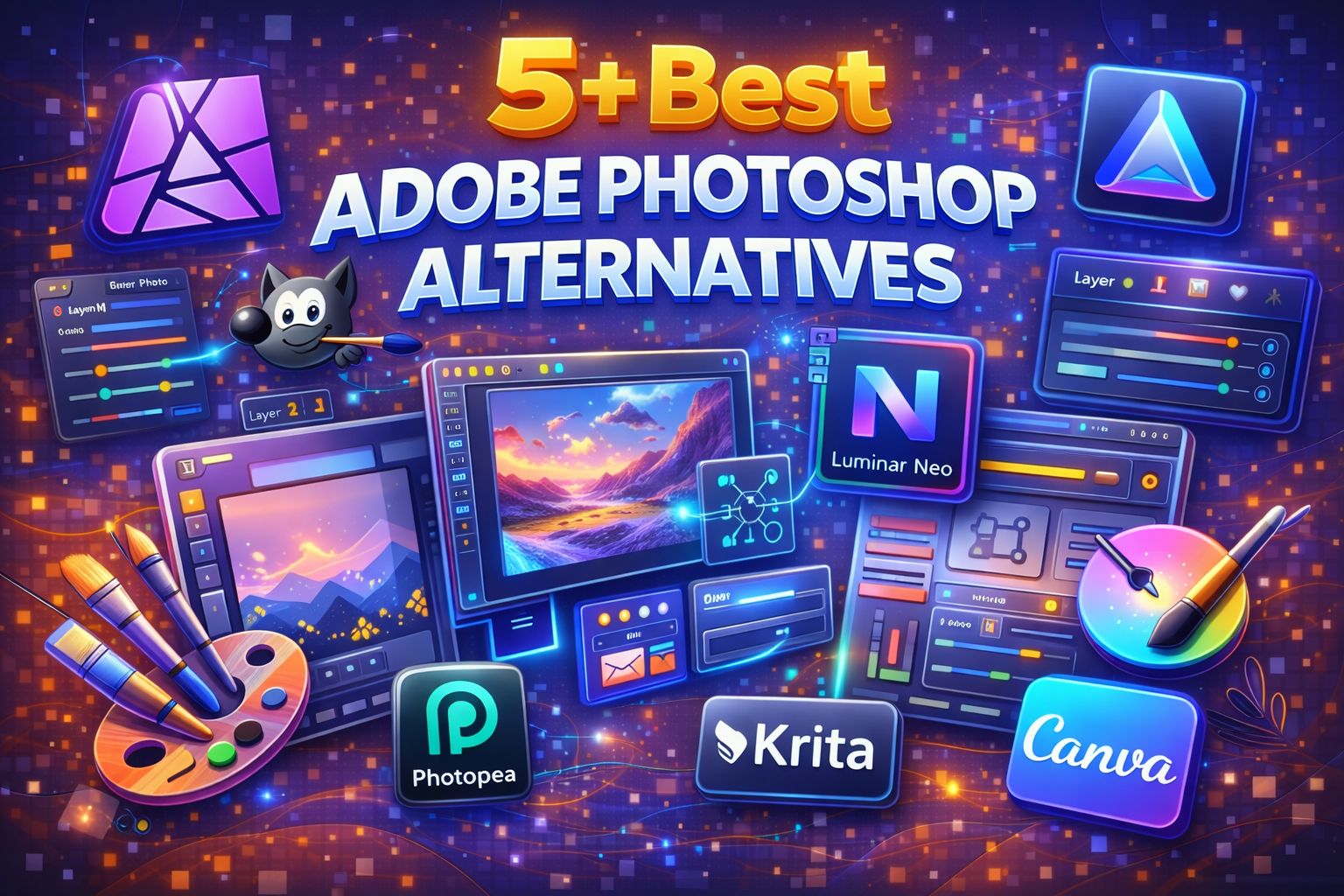
Today’s photo editing tools are smarter than ever. From AI enhancements and background removal to layers and creative effects, you can now get professional results without relying on Adobe.
Canva Pro Discount – Save Up to 50% OFF Today! 💥
Get upto 50% OFF when you choose Canva Pro’s monthly or yearly plan. Design like a pro with access to premium templates, AI-powered tools, brand kits, Magic Resize, and 100,000+ stock photos and videos—all while saving big!
In this article, we’ll walk you through the best AI-powered Photoshop alternatives for designers, photographers, and content creators. Whether you’re a beginner or a pro, you’ll find tools that are easier, faster, and more affordable without sacrificing quality. 🚀
🏆 Best Adobe Photoshop Alternative (Winner)
Affinity Photo takes the top spot thanks to its professional-grade tools, one-time purchase with lifetime access, and seamless PSD support—making it the best choice for designers and photographers seeking a powerful Photoshop alternative.
#1. Affinity 🥇
Affinity Pro is a professional design suite that combines photo editing, vector graphics, and page layout in a single app.
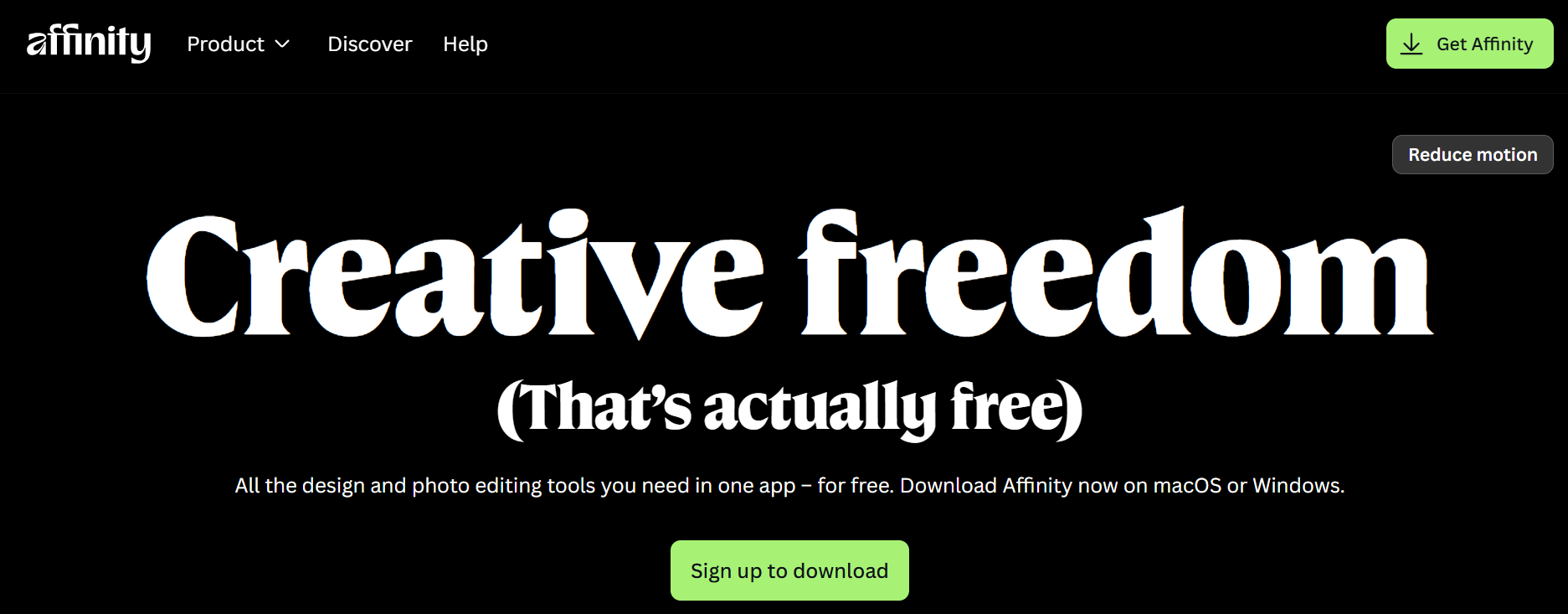
It’s fully customizable, fast, and precise, giving creators complete control over their workflow, whether you’re editing images, designing illustrations, or building layouts.
Key Features of Affinity 🌟
- Photo Editing & Pixel Studio
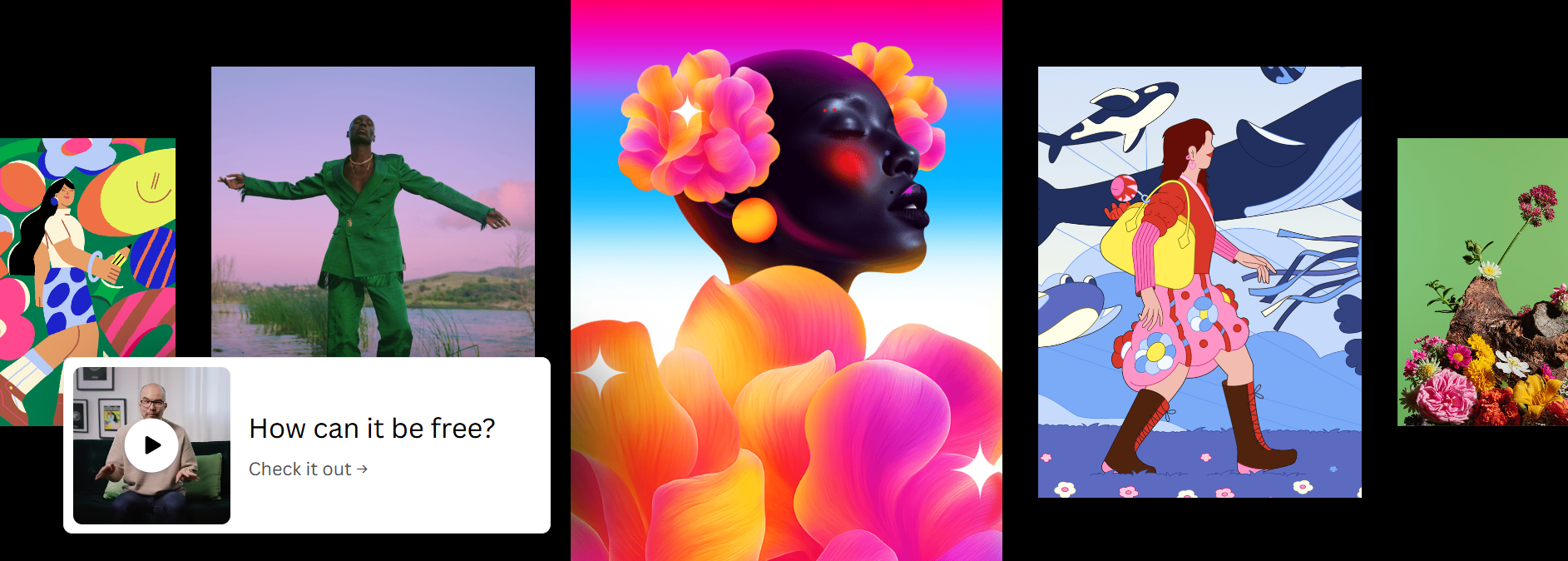
Affinity Pro offers advanced photo editing with non-destructive layers, live adjustments, and professional filters. You can tweak, erase, reorder, or remove edits without ever altering your original files, ensuring pixel-perfect results every time. - Vector Design Studio
Create crisp illustrations, logos, and graphics with the Vector Studio. It provides precise control over shapes, paths, and typography, making it ideal for designers working on scalable artwork.
- Page Layout Tools
Design brochures, magazines, or multi-page documents seamlessly. Affinity’s Layout Studio lets you combine text, images, and graphics in one space, keeping everything organized and easy to edit. - Cross-Platform Compatibility & File Support
Affinity Pro supports PSDs, AIs, DWGs, IDMLs, and more, preserving layers and structure. It works on macOS, Windows, and iPad (coming soon), letting you collaborate or switch devices easily. - Customizable Workspace & AI Integration
Rearrange panels, mix and match tools, and save custom studios to suit your workflow. With Canva premium integration, you can also access AI-powered features like background removal, generative image fills, and vector generation directly inside Affinity.
Download Affinity & Start Creating 🤩
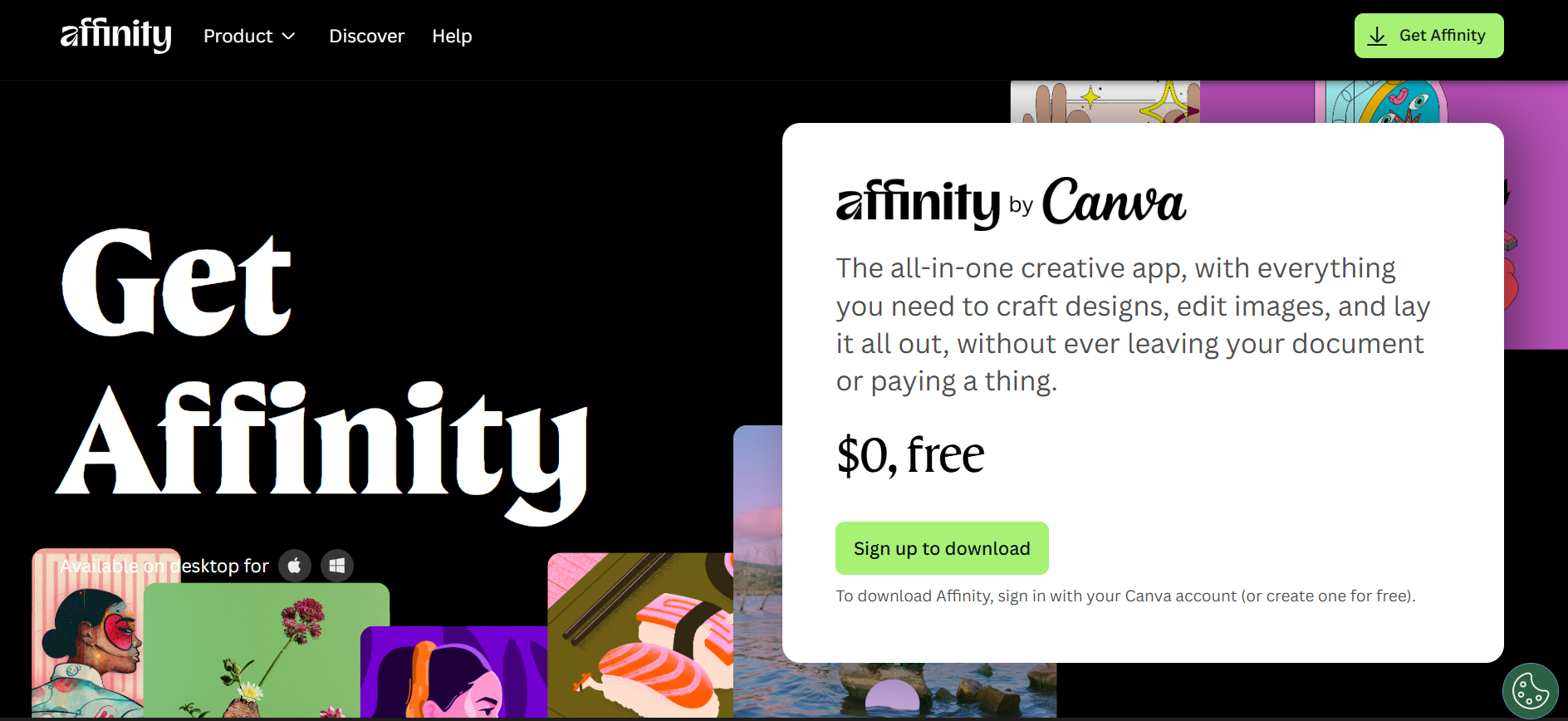
Affinity is 100% free at $0, with no subscriptions, no locked features, and no surprise upgrades. You get full access to professional-grade design, photo editing, and layout tools from day one without entering payment details.
There are no tiers, no usage limits, and no forced upgrades. Download Affinity on macOS or Windows, sign in with a free Canva account, and start creating immediately.
Whether you’re a student, freelancer, or professional designer, Affinity gives you total creative freedom with zero cost attached.
Pros & Cons of Affinity
| ✅ Pros | ❌ Cons |
|---|---|
| Completely free to use ($0 cost) | No cloud collaboration built-in |
| Vector, Pixel & Layout tools all in one app | Limited official tutorials compared to Adobe |
| Non-destructive editing for safe experimentation | No mobile version yet (iPad coming soon) |
| Supports PSD, AI, PDF, SVG, and many file formats | AI features require Canva Pro integration |
| Highly customizable workspaces & studio layouts | |
| Pixel-perfect export & professional output |
#2. GIMP 📝
GIMP (GNU Image Manipulation Program) is a free and open-source image editing software that works across multiple platforms, including Windows, macOS, and Linux.
It’s designed for everyone from graphic designers and photographers to illustrators and scientists providing advanced tools for photo manipulation, graphic design, and digital art creation.
Key Features of GIMP ✨
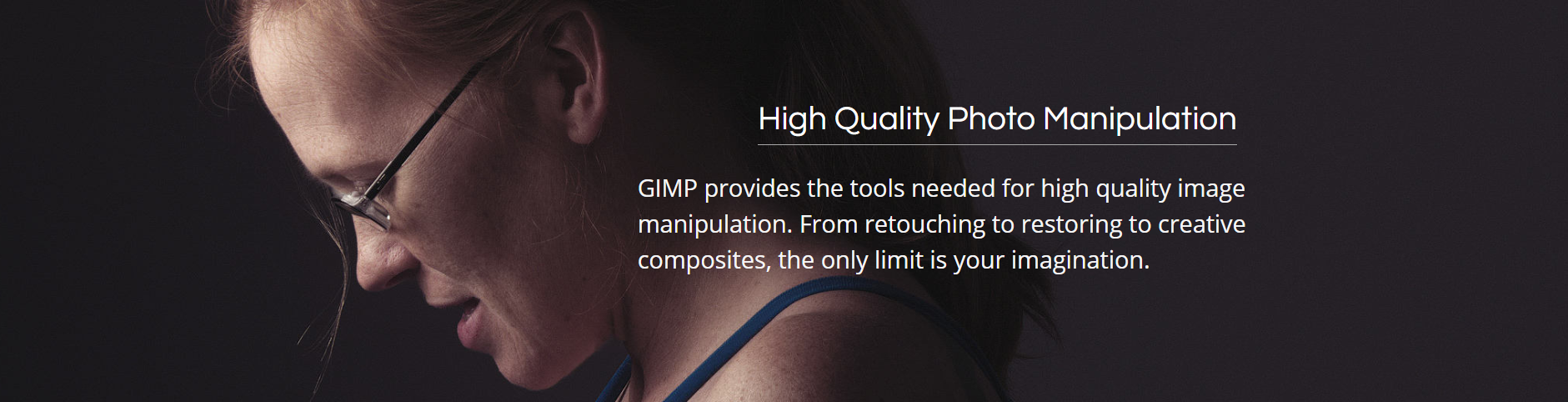
1. High-Quality Photo Manipulation
GIMP provides all the tools you need for professional-level photo editing, from simple touch-ups to complex image manipulations. You can retouch portraits, restore old photos, or create stunning composites with layers, masks, and advanced filters. Its non-destructive workflow ensures your original images remain intact while you experiment freely.
2. Original Artwork Creation
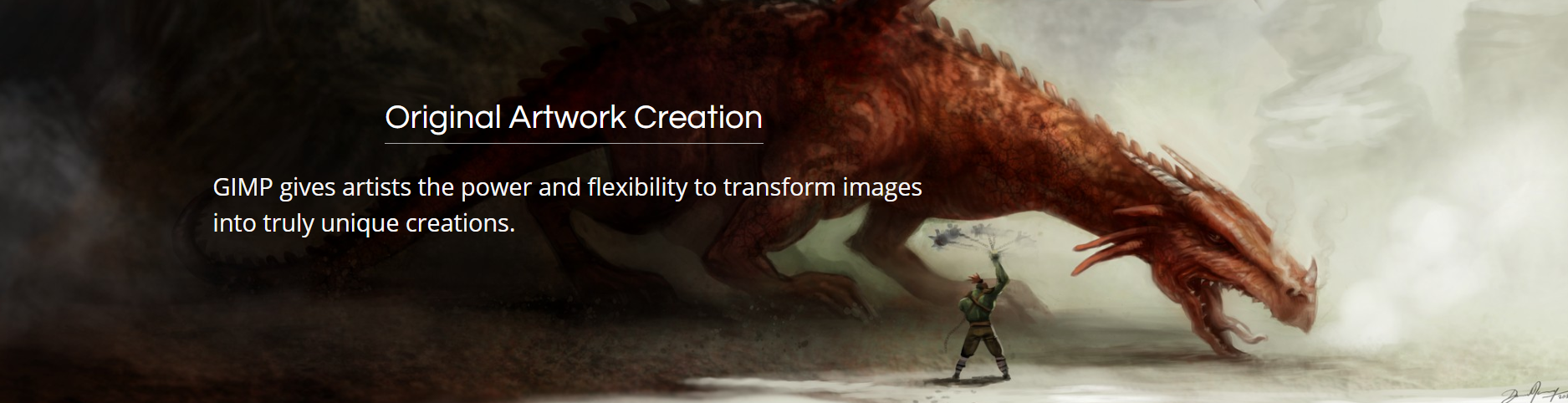
Whether you’re an illustrator, digital painter, or graphic artist, GIMP allows you to turn your ideas into unique artwork. You can use custom brushes, layers, and textures to craft illustrations, concept art, and creative compositions. Its flexibility makes it ideal for both hobbyists and professionals.
3. Graphic Design Elements
GIMP isn’t just for photos—it’s a full graphic design toolkit. You can create icons, web graphics, mockups, and other interface elements with precision. Its vector tools, layer effects, and text manipulation options help designers build polished and scalable assets for any project.
4. Extensibility & Scripting
One of GIMP’s strongest features is its customization and automation. It supports Python, Perl, Scheme, and other scripting languages, allowing you to write custom scripts, automate repetitive tasks, or add new features.
5. Cross-Platform & Open Source
GIMP is completely free and open-source, running on Windows, macOS, Linux, and more. You can tweak the source code, share modifications, and benefit from frequent community-driven updates. This freedom makes it a reliable tool for individuals, organizations, and educational purposes.
Download GIMP & Start Creating 🎨
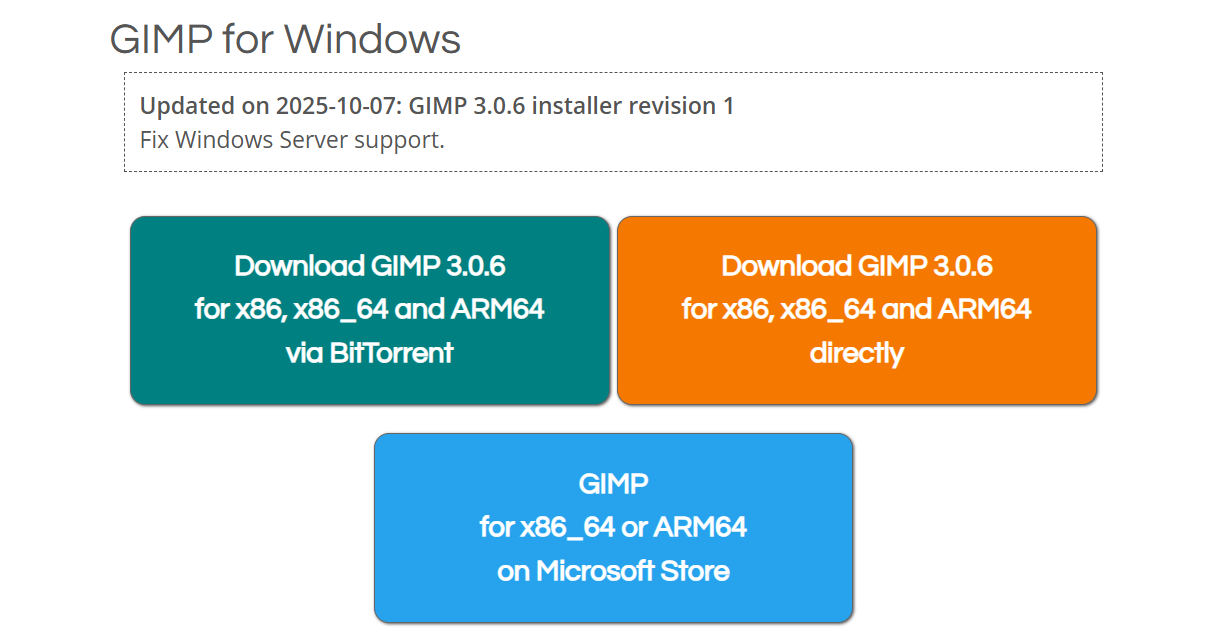
GIMP is a powerful, free, and open-source image editor available for Windows, macOS, and Linux. The latest stable release, GIMP 3.0.6, comes packed with advanced tools for photo manipulation, artwork creation, and graphic design.
You can download it directly for your system x86, x86_64, or ARM64 via installer, BitTorrent, or even the Microsoft Store for Windows users. GIMP also provides source code downloads for developers who want to compile and customize it for their own needs.
Pros & Cons of GIMP
| 👍 Pros | 👎 Cons |
|---|---|
| Free and open-source, no licensing costs | Steeper learning curve for beginners |
| Cross-platform: Windows, macOS, Linux | UI feels less modern compared to paid software |
| High-quality photo editing with layers, masks, and filters | Limited official support |
| Original artwork creation with custom brushes and textures | |
| Extensible with plugins and scripting (Python, Perl, Scheme) | |
| Supports numerous file formats: PSD, AI, PDF, SVG, and more | |
| Non-destructive editing keeps original files intact |
#3. Luminar Neo 🎨
Luminar Neo is a next-generation photo editing software designed to make professional-quality image enhancement simple and enjoyable.
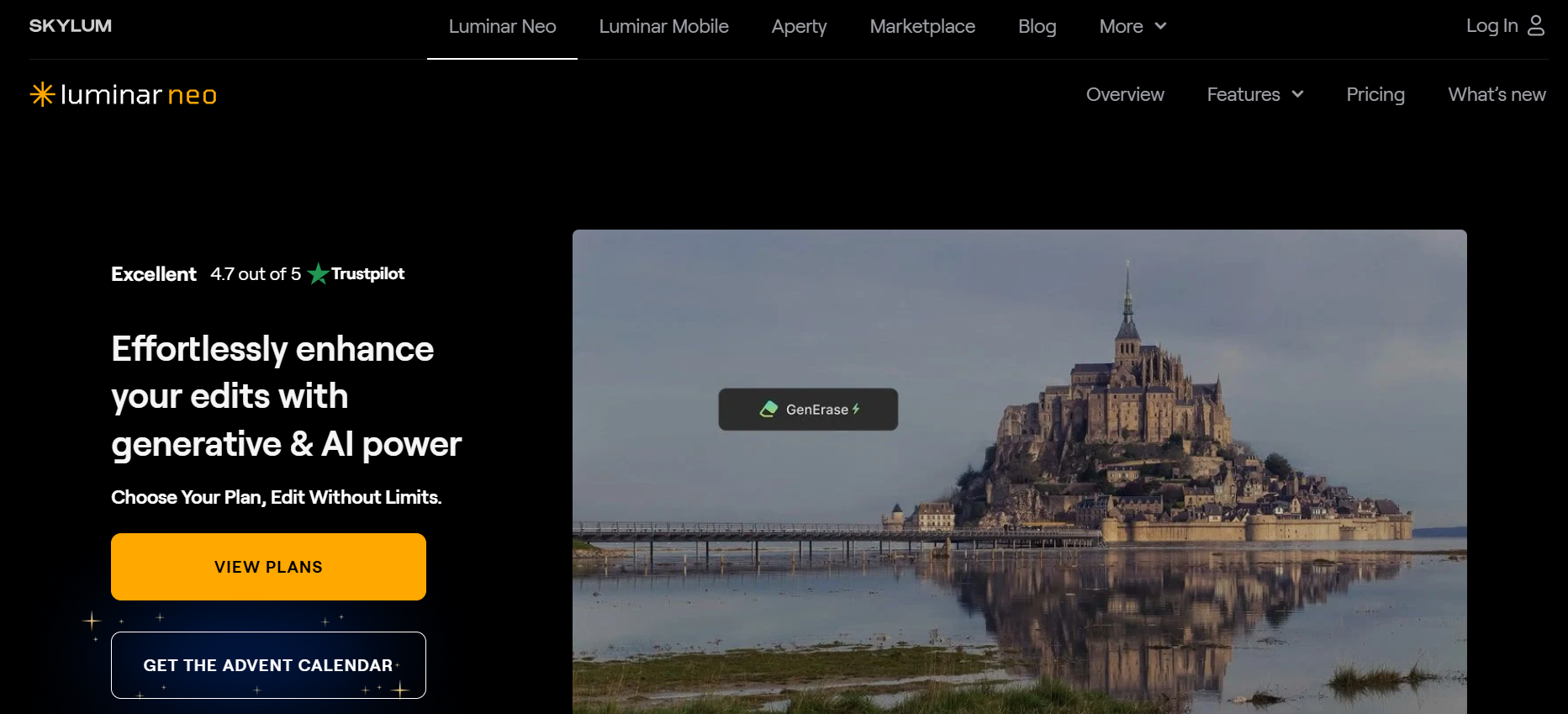
Developed by Skylum, it combines a modern, intuitive interface with powerful AI-driven tools to help photographers, creators, and hobbyists elevate their images effortlessly..
Key Features of Luminar Neo 🌟
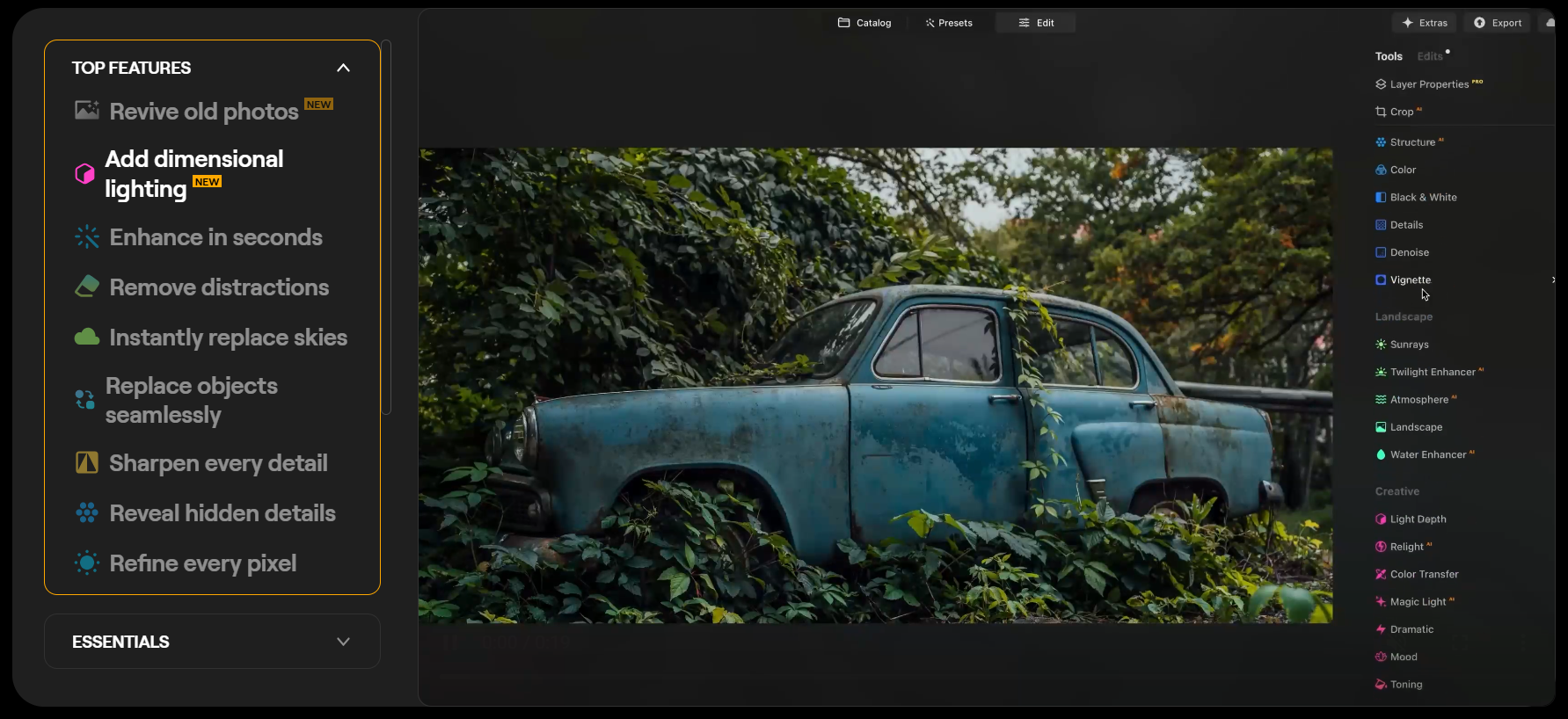
- AI-Powered Enhancements
Luminar Neo uses advanced AI tools like SkyAI, SkinAI, FaceAI, and GenErase to automatically improve your photos. Whether it’s replacing skies, removing distractions, or enhancing facial features, these smart tools save time and deliver professional-quality results without complex manual edits. - Non-Destructive Editing
With Luminar Neo, you can make changes to your images using layers, masks, and adjustments while keeping the original photo intact. This non-destructive workflow allows you to experiment freely, tweak edits, or revert changes at any time without losing quality.
- Advanced Photo Retouching
Luminar Neo provides powerful portrait and image retouching tools. You can smooth skin, remove blemishes, adjust facial features, and enhance eyes or hair effortlessly. Its AI-guided adjustments help achieve a natural, polished look while saving hours of manual work. - Batch Editing & Presets
Edit multiple images at once using Luminar Neo’s batch processing feature. Combined with a variety of ready-made presets, you can quickly maintain a consistent style across an entire photoshoot, making it ideal for professional photographers or content creators. - Cross-Device Ecosystem & Plugin Support
Luminar Neo lets you start editing on mobile or tablet and finish on desktop, keeping all your work synced across devices. It also works as a plugin for Photoshop and Lightroom, providing flexible integration into your existing editing workflow for maximum convenience.
Pricing Plans of Luminar Neo 💰
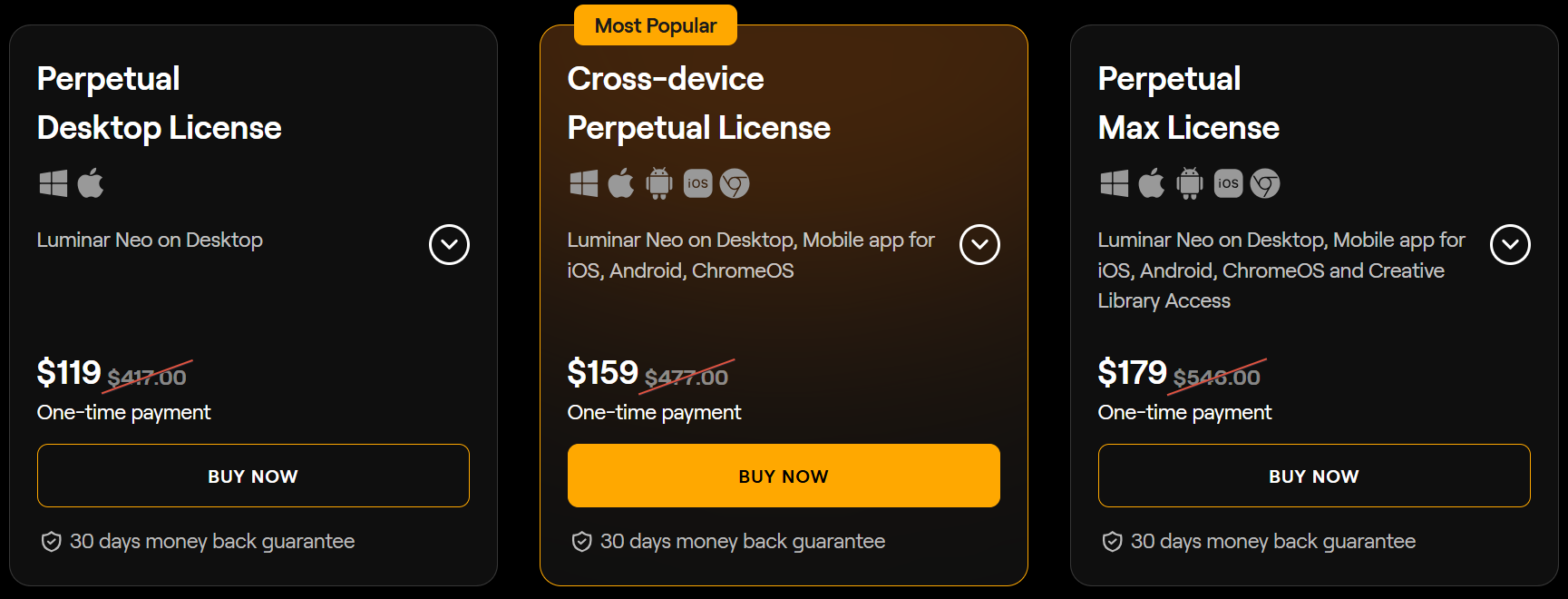
- Perpetual Desktop License – $119
Own Luminar Neo forever with this one-time purchase. Includes desktop access, AI tools, and one year of updates for a smooth editing experience. - Perpetual Cross-Device License – $159
Edit across desktop and mobile devices with this plan. Includes all AI tools, cross-device syncing, and access to online galleries for sharing your work. - Perpetual Max License – $179
The ultimate plan with everything from Cross-Device License plus access to the Creative Library. Get exclusive presets, overlays, LUTs, and video tutorials for pro-level editing.
Pros & Cons of Luminar Neo
| 👍 Pros | 👎 Cons |
|---|---|
| AI-powered tools make editing fast and intuitive | One-time purchase still higher than basic editors |
| Non-destructive editing retains original photos | Full AI features may require learning for beginners |
| Seamless cross-device workflow (desktop + mobile) | Mobile editing still less powerful than desktop |
| Works as plugin with Photoshop & Lightroom | |
| Batch editing and presets speed up workflow | |
| Supports RAW editing, layers, masking, and more | |
| Lifetime access options give long-term value |
#4. Canva Pro 🌟
Canva Pro is a premium subscription version of Canva, designed for individuals and businesses who want to create professional-quality designs quickly and efficiently.
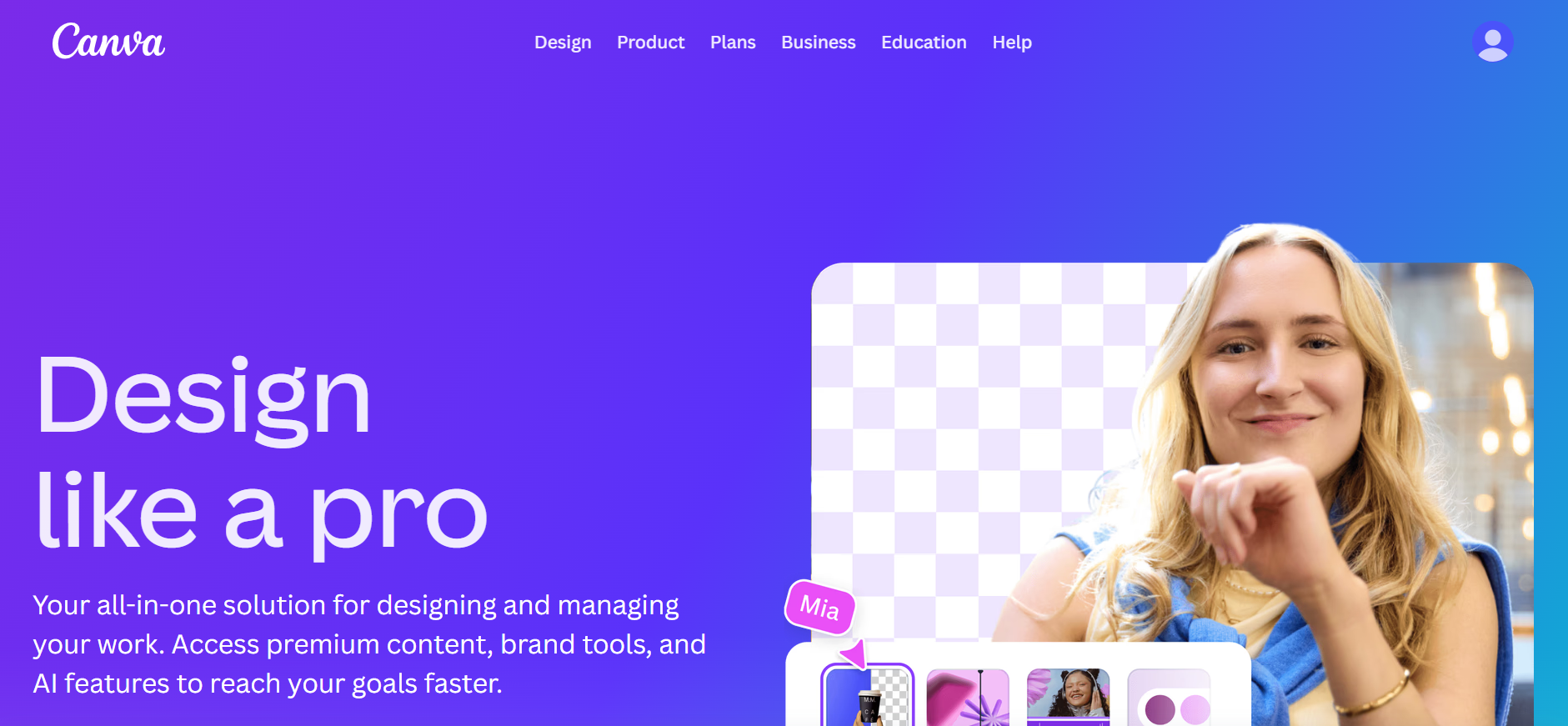
It gives you access to thousands of premium templates, AI-powered design tools, and advanced features that are not available in the free version.
With Canva Pro, you can build your brand, collaborate with others, scale content creation across social media and marketing channels, and use tools like Magic Resize, Background Remover, and AI-powered content generation.
Key Features of Canva 💫
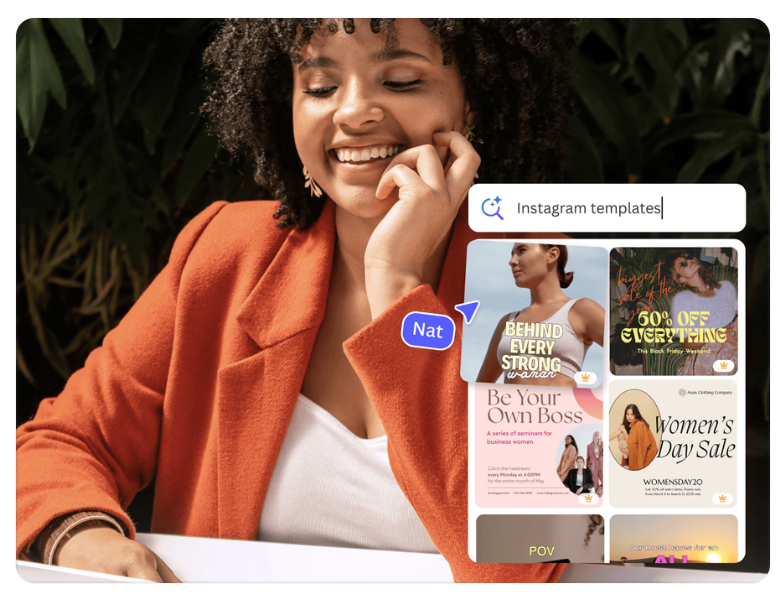
- Premium Templates & Design Assets
Access thousands of professionally designed templates, graphics, photos, and videos to quickly create presentations, social media posts, marketing materials, and more. Everything is ready to customize for your brand or project. - AI-Powered Design Tools
Use tools like Magic Resize, Magic Write, Background Remover, and AI-generated content to save time and enhance creativity. Canva’s AI helps automate repetitive tasks while keeping your designs polished.
- Brand Management & Kits
Set up Brand Kits with your brand colors, fonts, and logos to ensure consistency across all your designs. This feature makes it easy for teams or individuals to maintain a professional, unified look. - Collaboration & Team Features
Work together in real-time with team members. Share designs, leave comments, and edit simultaneously, making it ideal for businesses, educators, and creative teams. - Cross-Device Editing & Cloud Storage
Start your project on a desktop, continue on a tablet or mobile, and access your designs anywhere. Canva Pro also offers cloud storage for easy access, organization, and secure backup of all your projects.
Pricing Plans of Canva 💰
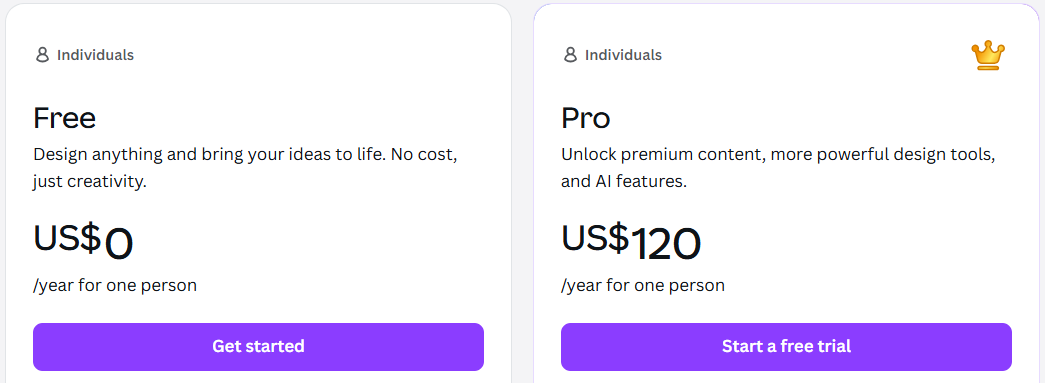
- Free Plan – $0/year
Design anything you want with no cost, perfect for individuals who want basic creative tools and unlimited projects. - Pro Plan – $120/year
Unlock premium content, advanced design tools, and powerful AI features to elevate your creativity and productivity.
Pros & Cons of Canva
| 👍 Pros | 👎 Cons |
|---|---|
| Access to thousands of premium templates for fast and easy design | Some advanced features only available in Pro version |
| Powerful AI tools for background removal, content generation, and editing | Free plan has limited access to premium content and features |
| Easy-to-use drag-and-drop interface suitable for all skill levels | Some users report occasional lag with complex projects |
| Seamless collaboration tools for teams and clients | Limited offline functionality; requires internet connection |
| Extensive library of photos, videos, audio, and graphics | |
| Mobile app support allows editing on the go | |
| Integration with social media and printing services for easy publishing |
#5. Photopea 🎯
Photopea is a free, web-based image editor that runs directly in your browser. It’s designed to look and feel like Adobe Photoshop, making it a perfect alternative for designers, photographers, and digital artists who want professional tools without the cost.
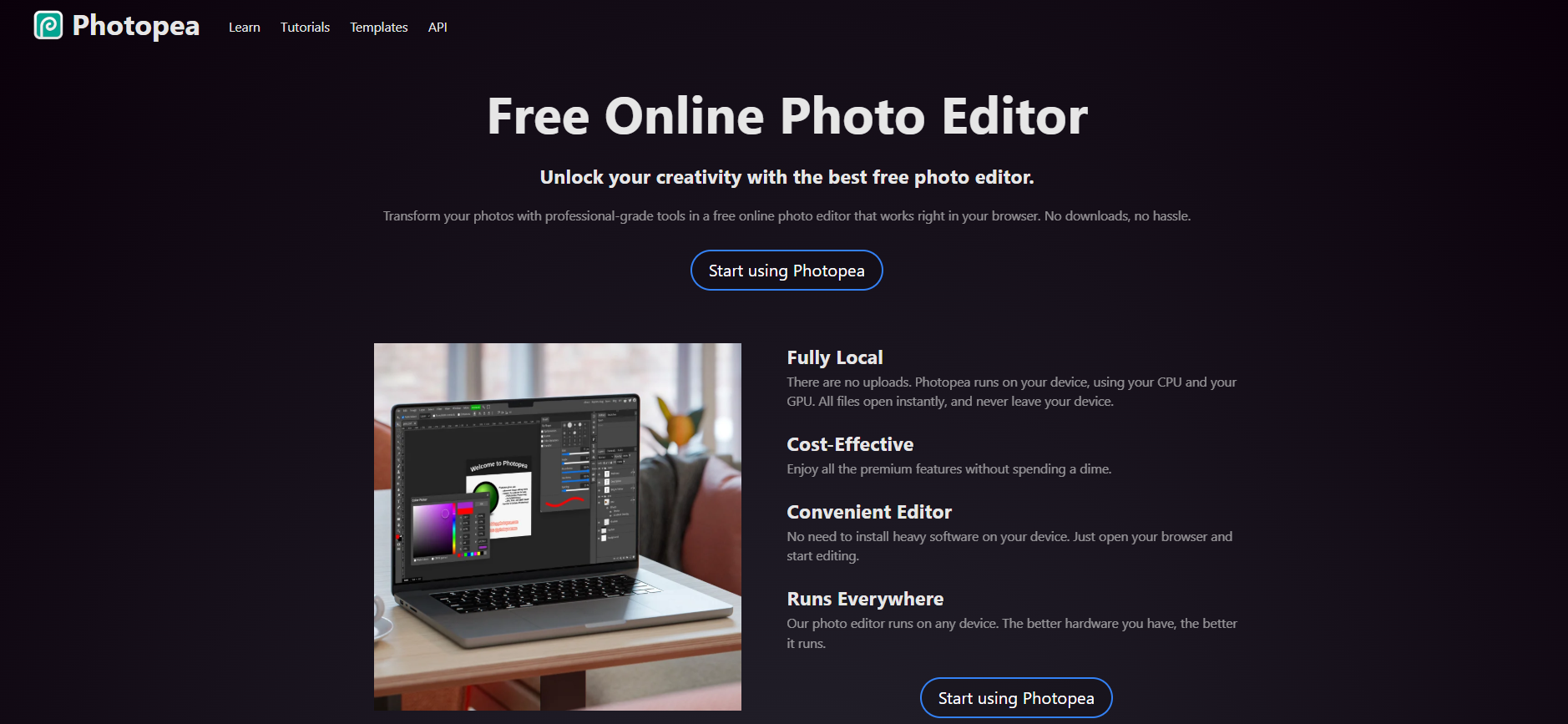
With Photopea, you can edit photos, create graphics, work with layers, masks, and filters, and even open PSD, XCF, Sketch, or other popular file formats. It’s accessible on any device with an internet connection, meaning your creative workflow can happen anywhere no installation needed.
Key Features of Photopea ✨
- PSD and Multi-Format Support
Photopea allows you to open and edit files from Adobe Photoshop (PSD), GIMP (XCF), Sketch, SVG, PDF, and more. It preserves layers, masks, smart objects, and effects, making it a seamless alternative for users who work with multiple file types. - Advanced Photo Editing Tools
Photopea comes with a full suite of professional editing tools, including layers, masks, filters, adjustment layers, gradients, and brush tools. Whether you’re retouching photos, creating composites, or enhancing images, it gives you precision control similar to desktop software. - Web-Based and Cross-Platform
Photopea runs entirely in your browser, so there’s no need to download or install software. You can use it on Windows, macOS, Linux, Chromebooks, and even tablets, making it a flexible solution for editing anywhere, anytime.
- Vector and Raster Graphics
Photopea supports both raster and vector graphics. You can draw vector shapes, add text layers, or manipulate pixel-based images. This versatility makes it suitable for illustration, design projects, and UI/UX work. - Free with Optional Premium Features
The core version of Photopea is completely free and fully functional. For an ad-free experience and additional features, users can opt for a premium subscription. This makes it accessible for students, hobbyists, and professionals alike.
Access Photopea Anytime, Anywhere 🌐
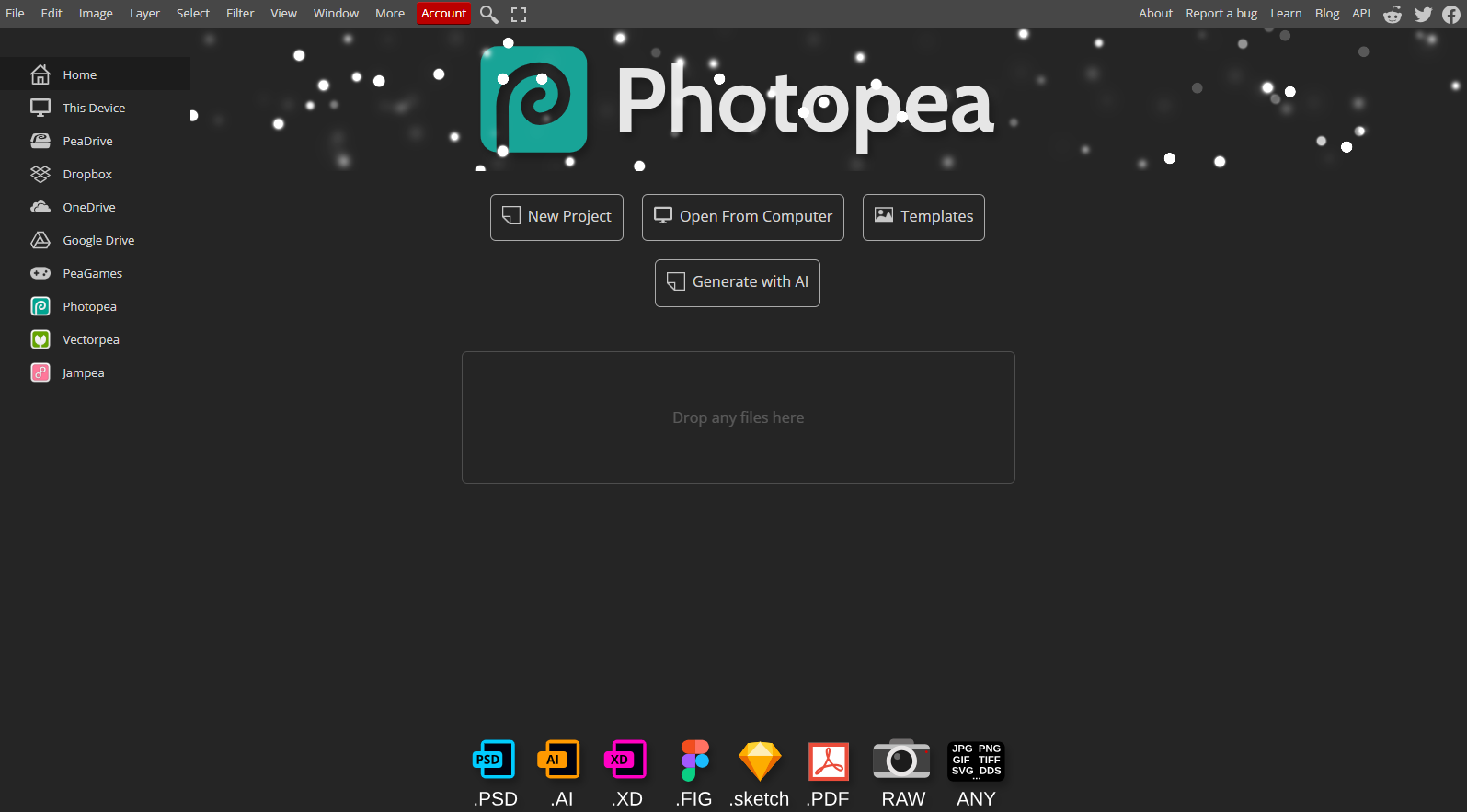
Photopea is a full-featured photo editor that runs directly in your browser—no downloads or installations required. You can start editing instantly, whether you’re using a school computer, a public device, or your own laptop.
It supports PSD, XCF, Sketch, XD, and CDR files, along with layers, masks, filters, and advanced tools, making it ideal for students, hobbyists, and professionals who need powerful editing on the go completely free.
Pros & Cons of Photopea
| ✅ Pros | ❌ Cons |
|---|---|
| No installation required, runs entirely in your browser | Limited offline functionality |
| Supports PSD, XCF, Sketch, XD, and CDR file formats | Some advanced tools can be slower on large files |
| Layer and mask support like professional software | Ads appear in free version |
| Advanced selection and retouching tools | |
| Supports filters, blending modes, and effects | |
| Free to use with no sign-up required | |
| Works on Windows, Mac, Linux, and Chromebooks |
#6. Krita 🎬
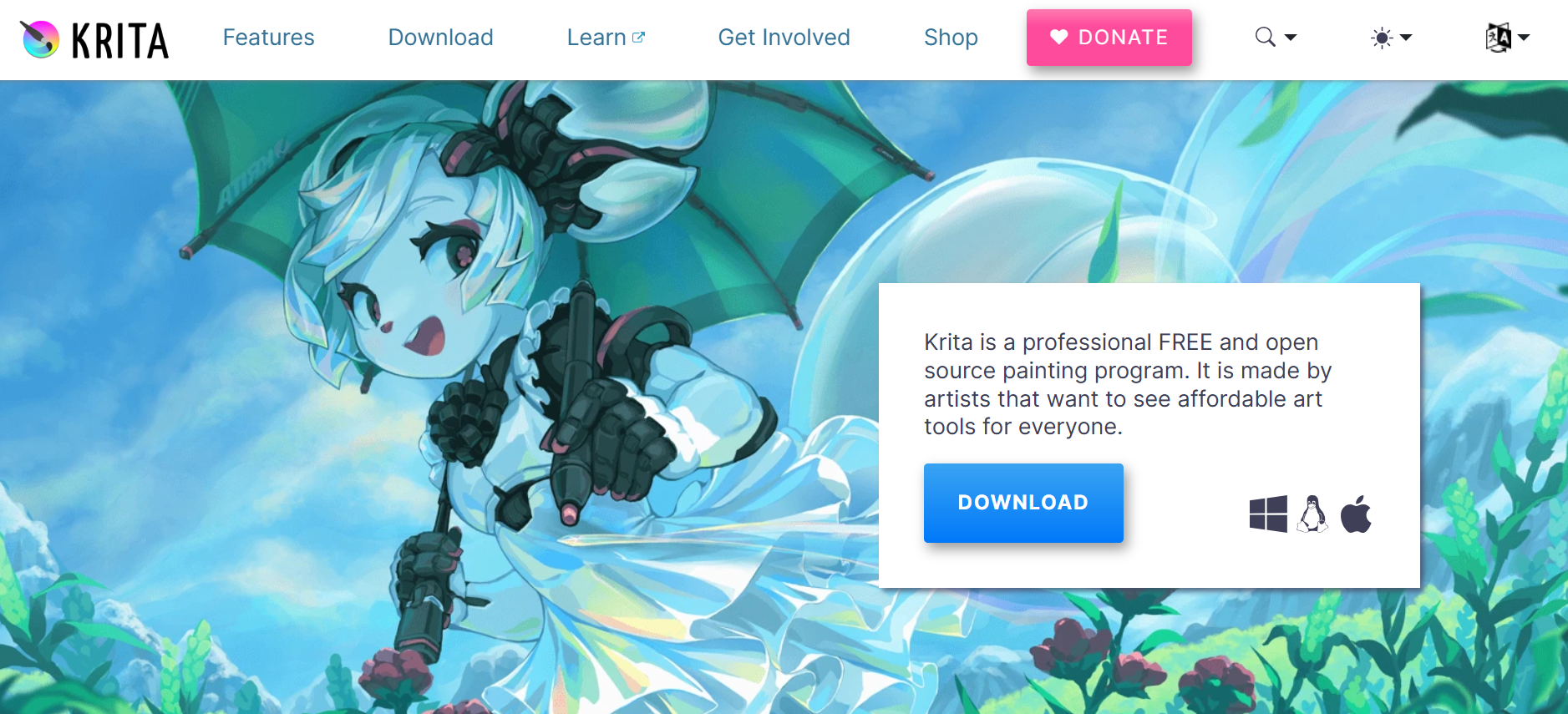
Krita is a professional, free, and open-source painting program designed by artists for artists. It offers powerful digital art tools and features suitable for both beginners and experienced creators, making affordable and high-quality art software accessible to everyone.
Key Features of Krita ✨
- Multiple Brush Types
Krita offers a wide variety of customizable brushes to support different art styles, from sketching and painting to texturing and blending. - Layers, Drawing Assistants, and Stabilizers
It supports advanced layer management, useful drawing assistants like guides and grids, and brush stabilizers to help create smooth, precise strokes.
- Animation Tools
Krita includes powerful animation features, allowing artists to create frame-by-frame animations and bring their artwork to life. - Extensive Resource Library
Users can expand Krita’s capabilities with downloadable brushes, textures, patterns, and plugins, offering endless creative possibilities. - Supportive Community and Documentation
Krita has a strong online community for sharing artwork, tips, and feedback, along with comprehensive tutorials and documentation to help users grow.
Download Krita For Windows ⬇️
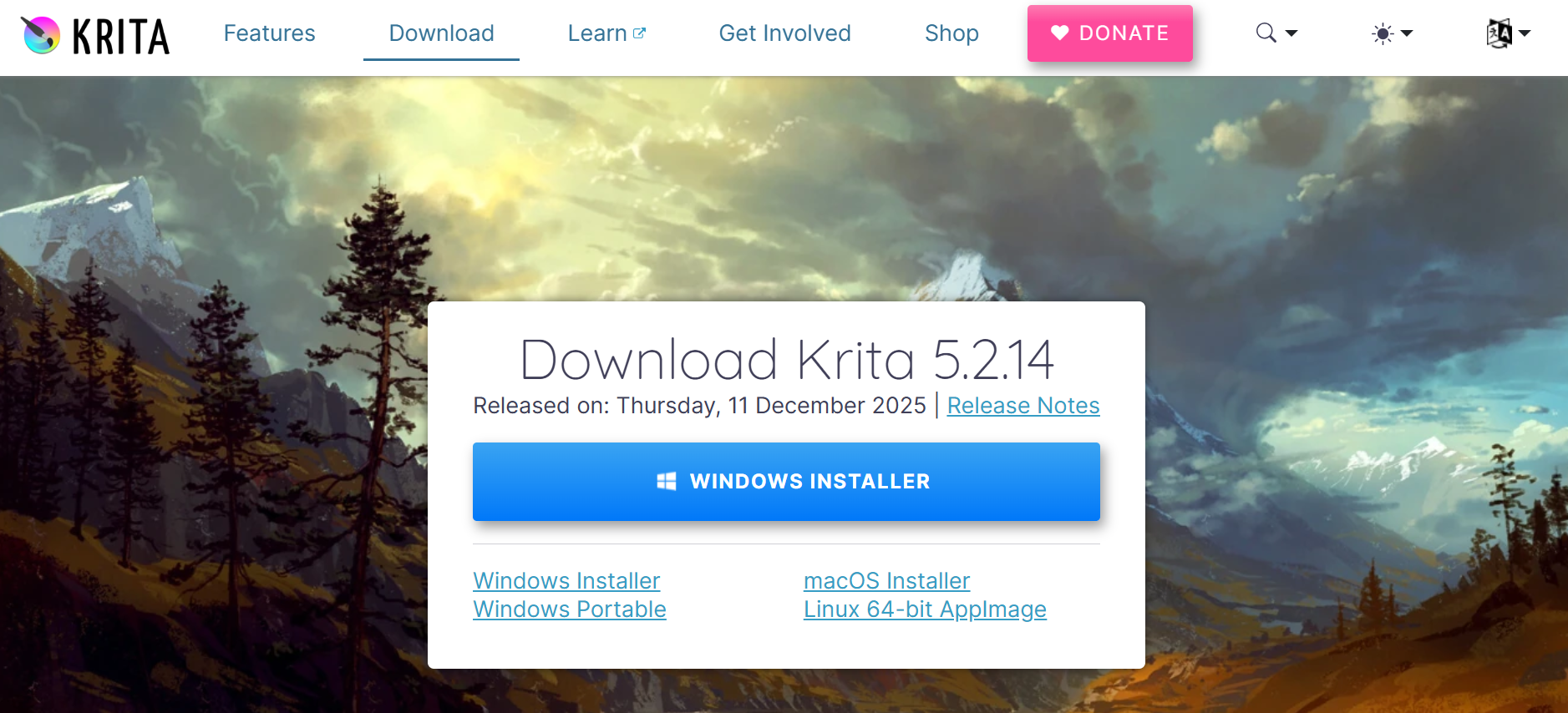
Krita is a free and open-source painting program for Windows, macOS, and Linux. You can download it as an installer or a portable version and start creating digital art right away.
It works with graphics tablets and requires at least 4 GB of RAM. For Windows, the Microsoft Store version needs Windows 10 or higher and updates automatically.
Pros & Cons of Krita ✅
| Pros | Cons |
|---|---|
| Free and open-source software | Steeper learning curve for beginners |
| Powerful brush engine with multiple brush types | Can be resource-heavy on older computers |
| Supports layers, masks, and animation tools | Limited built-in tutorials for advanced techniques |
| Works on Windows, macOS, and Linux | |
| Customizable interface and shortcuts | |
| Supports graphics tablets and pen pressure | |
| Active community with plugins, brushes, and resources |
Which Is Best Adobe AI Photoshop Alternative? 🏆
When it comes to finding a powerful alternative to Adobe Photoshop, especially one that includes AI‑assisted tools and professional editing capabilities, several options stand out. Tools like GIMP, Photopea, Luminar Neo, Canva, and Krita all bring unique strengths to the table.
But if you’re looking for the best well‑rounded replacement that balances professional power, ease of use, versatility, and long‑term value, Affinity Photo (part of the Affinity suite) takes the top spot.
💡 Why Affinity Is Best Overall Alternative?
Affinity isn’t just another free or browser‑based editor — it’s a true desktop class application built for photographers, designers, and creative pros who need advanced tools without a subscription.
Unlike some free or lightweight editors, Affinity Photo offers deep editing controls, vector and pixel tools, flawless PSD compatibility, and performance that rivals Photoshop.
Conclusion 🔥
Choosing the right Adobe Photoshop alternative depends on your needs, budget, and workflow. While tools like GIMP, Photopea, Luminar Neo, Canva, and Krita each have their strengths, Affinity Photo clearly stands out as the ultimate all-in-one solution.
With professional-grade tools, PSD compatibility, AI-assisted features, and a one-time purchase, Affinity combines power, flexibility, and value making it the best choice for creatives who want a full-featured Photoshop alternative without the subscription hassle.
Whether you’re a photographer, designer, or digital artist, Affinity empowers you to create like a pro while keeping your workflow smooth and cost-effective.
Must Read:
- Canva Review: Is It Worthy as Everyone Says?
- Mylio Review: Is It Best AI Photo Organizer?
- 5+ Best Canva Alternatives: Which One is The Best?
FAQs 📝
Most tools like Affinity Photo, Photopea, and Luminar Neo allow installation on multiple devices, but limits vary by software.
Yes, software like Affinity, GIMP, and Krita support high-resolution files, CMYK, and color management for print-ready designs.
Affinity Photo, Photopea, and Krita can open and edit PSD files, making them compatible with Photoshop workflows.
Yes, Photopea and Canva are very beginner-friendly, while Affinity and Krita may have a learning curve but offer advanced tutorials.
