
Parallels Desktop v26 Review: What’s New & Improved?
Are you a Mac user who needs to run Windows, Linux, or both?💻

Do you want an efficient and seamless way to switch between multiple operating systems on your Mac without the hassle of rebooting?🤔
Parallels Desktop v26 is the solution you’re looking for.
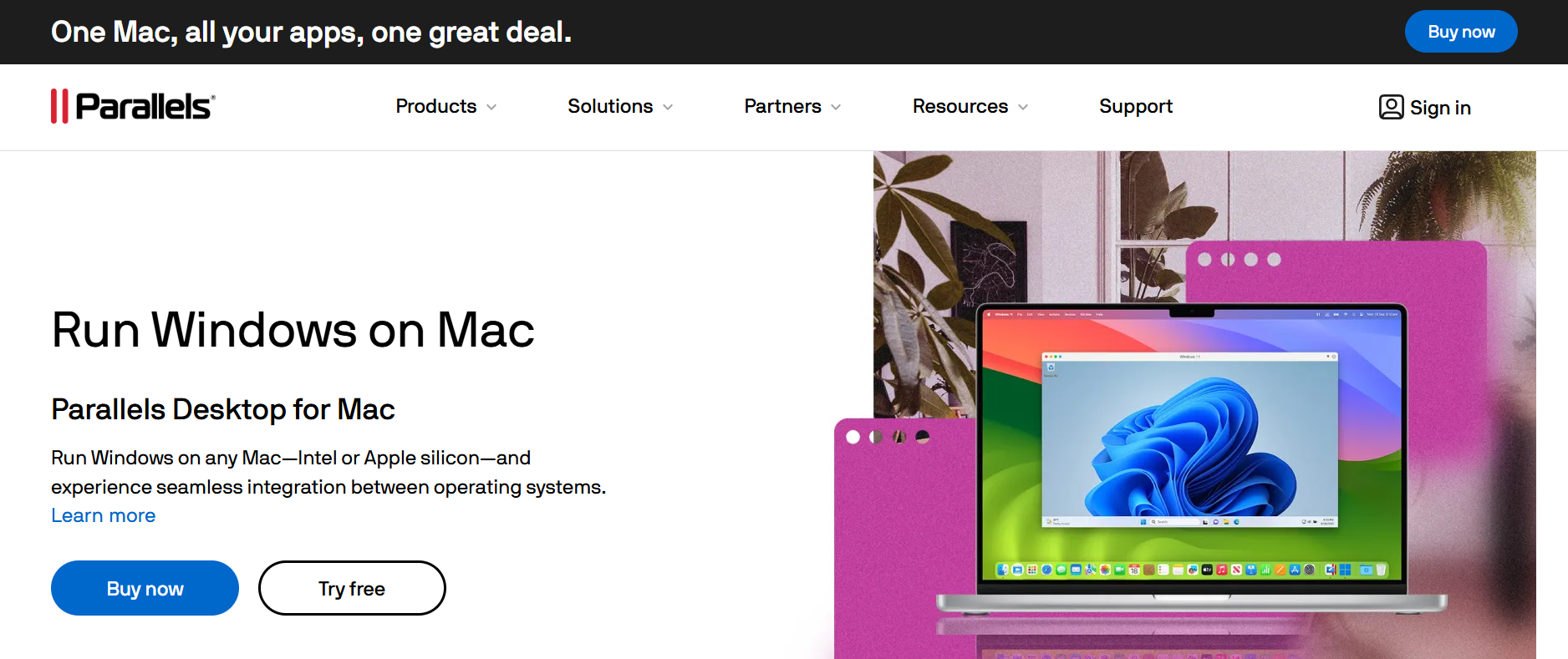
In this Parallels v26 review, we’ll explore what makes Parallels Desktop v26 an industry leader, its features, pricing, pros and cons, and why it might be the perfect fit for your needs.

🔥 Parallels Deal – Upto 50% OFF on Standard & Pro Edition! 💻
For a short time, get up to 50% off on Standard and Pro editions. Run Windows and macOS side by side seamlessly. Don’t miss out! Enhance your workflow today!
🎯 Unlock Parallels Business Edition – Upto 35% Off! 🚀
Enjoy up to 35% off on Parallels Business Edition for a limited time and work effortlessly across Windows and macOS. Grab this offer before it’s gone!
What’s New In Parallels Desktop v26?💡
Parallels Desktop v26 is a top-tier virtualization software that enables users to run multiple operating systems (OS) on a single Mac, including Windows, Linux, and even other versions of macOS.
The software has been a trusted choice for Mac users for nearly 20 years, with a massive user base of over 7 million installs and 2 million active users, including over 50,000 businesses.
Parallels Desktop is renowned for its speed, reliability, and ease of use.
Whether you’re a developer, IT professional, or simply someone who needs to run Windows applications on a Mac, this software allows you to run 200,000+ applications on Apple Silicon Macs, making it incredibly versatile.

Parallels has an established reputation, being authorized by Microsoft to run Windows 11 on Macs with Apple Silicon, ensuring your system is supported and optimized for the latest updates.
Additionally, it is certified by Arm SystemReady, and Parallels collaborates directly with both Microsoft and Apple, giving users confidence in long-term compatibility and support.
New Features of Parallels Desktop v26🛠️
1. Runs Windows, Linux, and macOS on a Mac
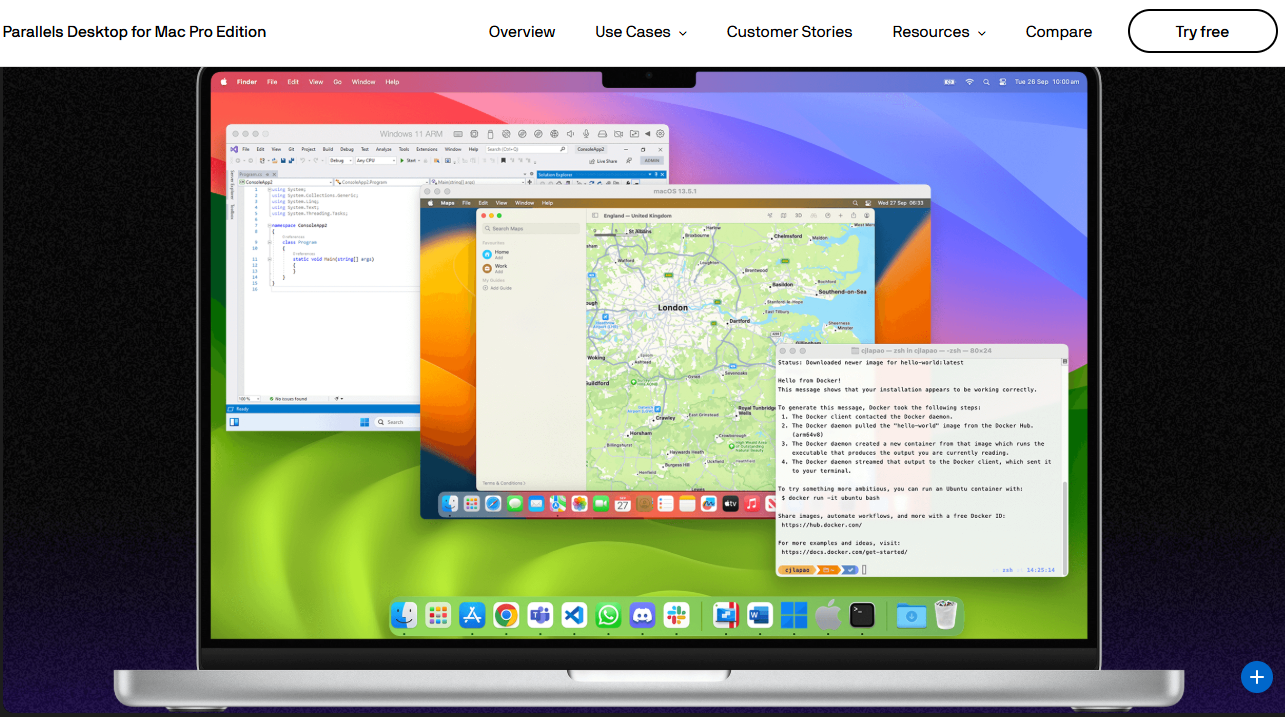
Parallels Desktop allows you to seamlessly run multiple operating systems on your Mac simultaneously.
Whether you need to run Windows for business applications or Linux for development, Parallels offers the flexibility to switch between operating systems effortlessly without restarting your computer.
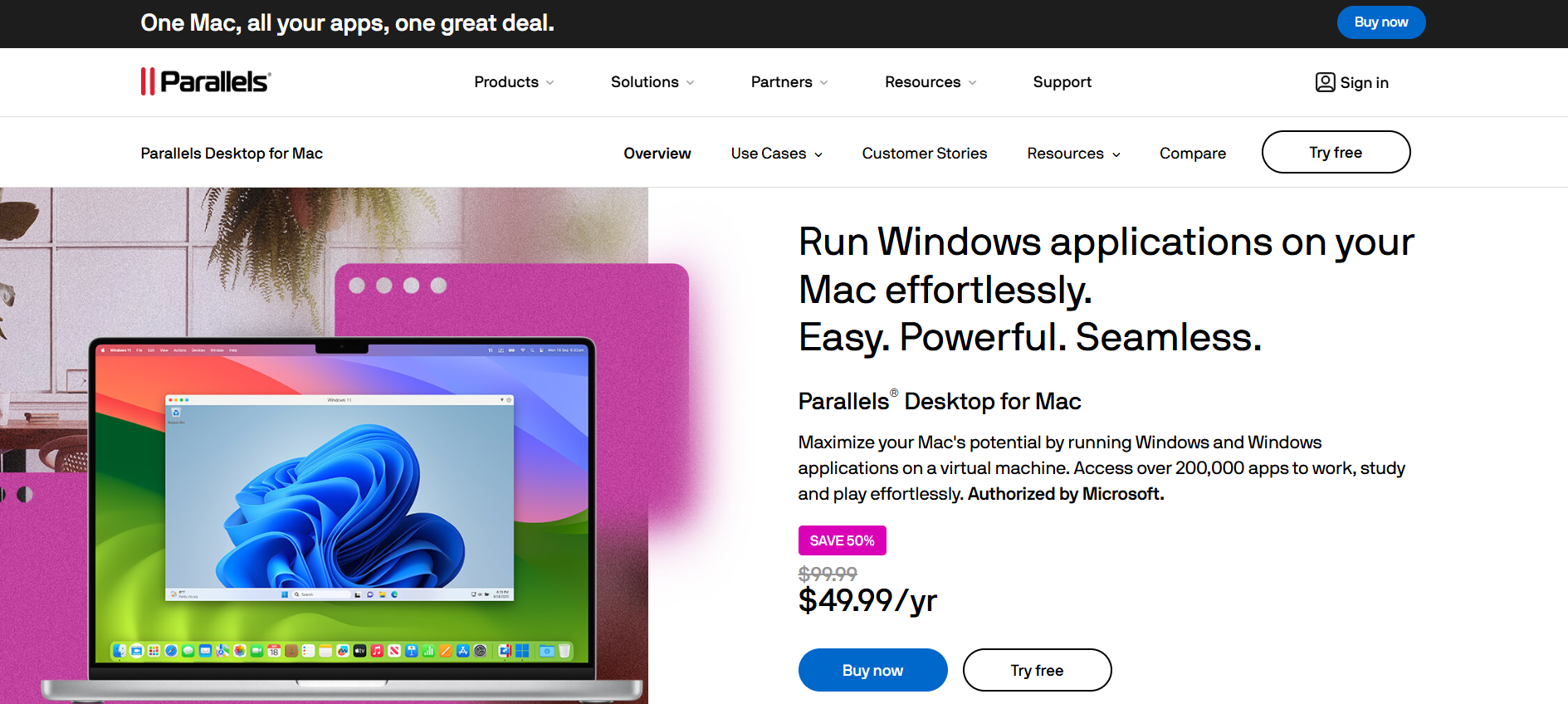
This ability is particularly valuable for professionals and developers who require cross-platform compatibility.
2. Optimized for Apple Silicon Macs
Parallels Desktop 26 has been specifically optimized for Apple Silicon Macs (M1 and M2 chips), allowing you to run Windows 11, Linux, and macOS with exceptional speed and performance.
It enables users to run over 200,000 applications designed for both Intel and Apple Silicon architectures.
3. Seamless Windows Integration
Parallels allows Windows and macOS to work together smoothly.
You can drag and drop files between operating systems, copy and paste between Windows and macOS, and even run Windows applications from your macOS desktop.
This deep integration makes Parallels an ideal solution for anyone who needs to run Windows-specific programs, such as Microsoft Office or design software, while still using their Mac for other tasks.
4. Certified by Microsoft to Run Windows 11
Parallels is one of the few virtualization tools that are officially authorized by Microsoft to run Windows 11 on Macs with Apple Silicon chips.

This official certification ensures that users can experience full compatibility and optimal performance when running Windows 11 on their Mac, making Parallels the go-to solution for Mac users who need Windows.
5. Direct Collaboration with Microsoft and Apple
Parallels’ direct collaboration with both Microsoft and Apple gives users peace of mind, knowing that the software will receive regular updates, patches, and long-term support.
Both companies provide ongoing assistance to ensure that Parallels works flawlessly across all devices, from macOS to Windows and beyond.
6. Support for Over 200,000 Applications
Whether you’re using Windows for work or running specialized Linux tools, Parallels ensures that over 200,000 applications are available to run on your Mac without a hitch.
This makes it ideal for both professionals and casual users who need cross-platform compatibility for various software applications.
7. Easy Installation and Setup
Parallels Desktop 26 is designed to be user-friendly, with an intuitive setup process that takes just a few minutes.
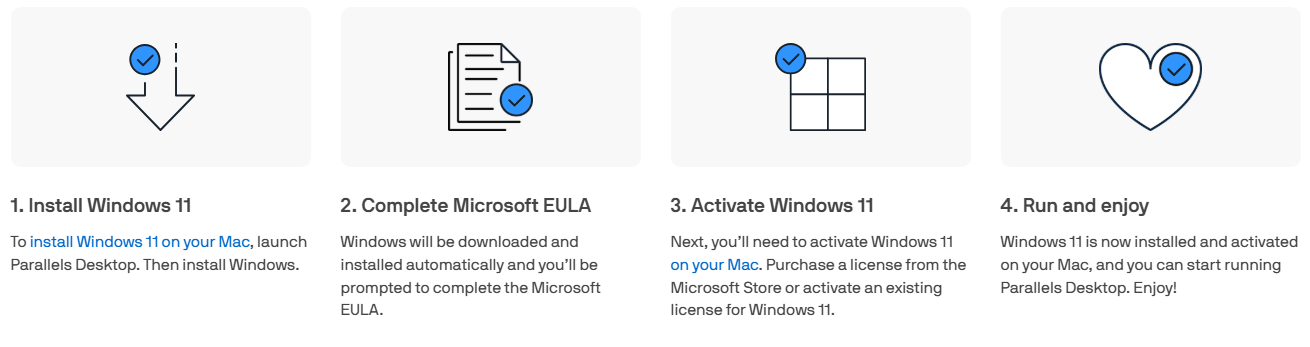
The software automatically configures your virtual machines (VMs) for optimal performance, making it simple for anyone, even beginners, to get started without dealing with complex settings.
8. Powerful Performance with Enhanced Graphics Support
Parallels Desktop 26 comes with enhanced graphics support, including DirectX 11 and OpenGL 4.1, making it ideal for gaming, design, and video editing applications.
This ensures smooth performance for even the most resource-intensive tasks.
How to Use Parallels Desktop v26?📝
Step 1: Go to official website – parallels.com
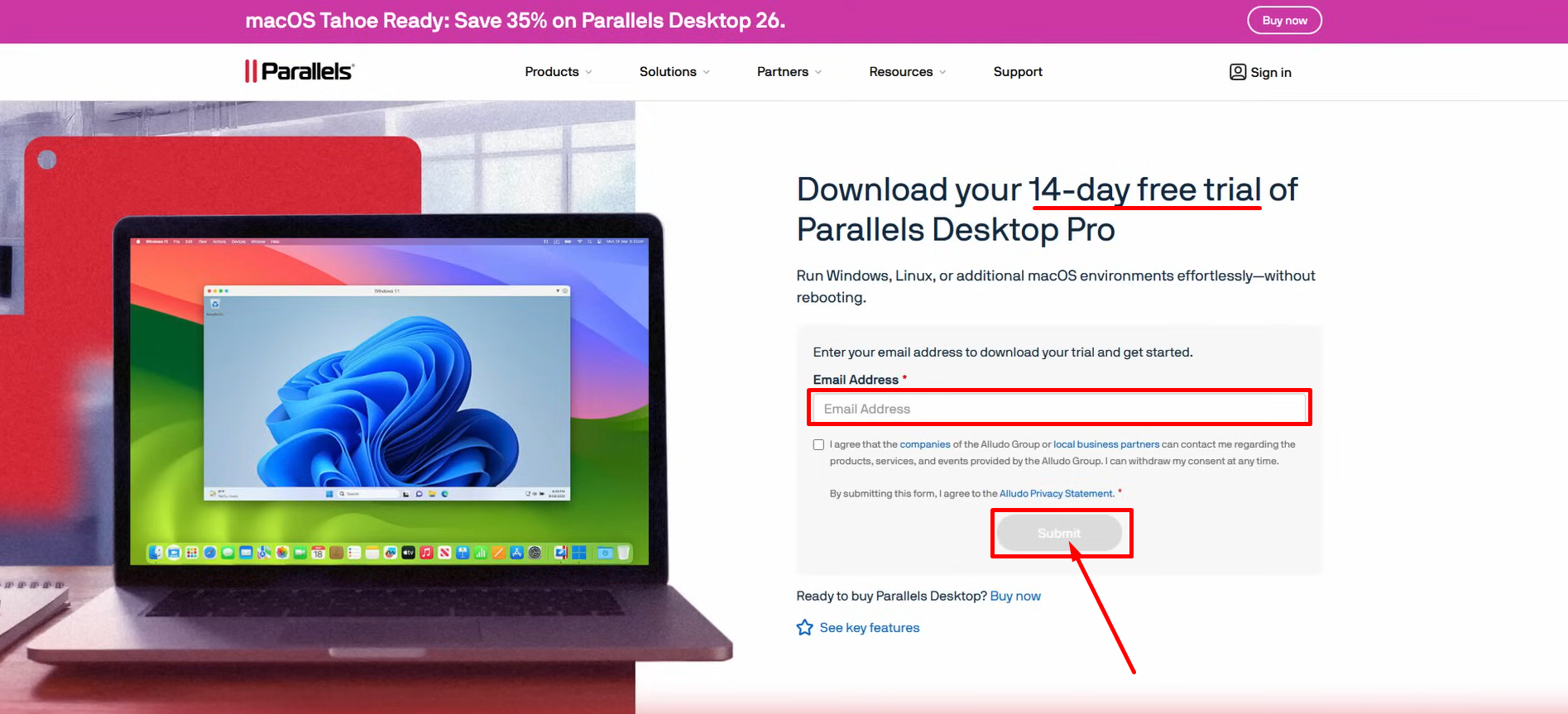
Step 2: Now, click on “Download Parallels Desktop”
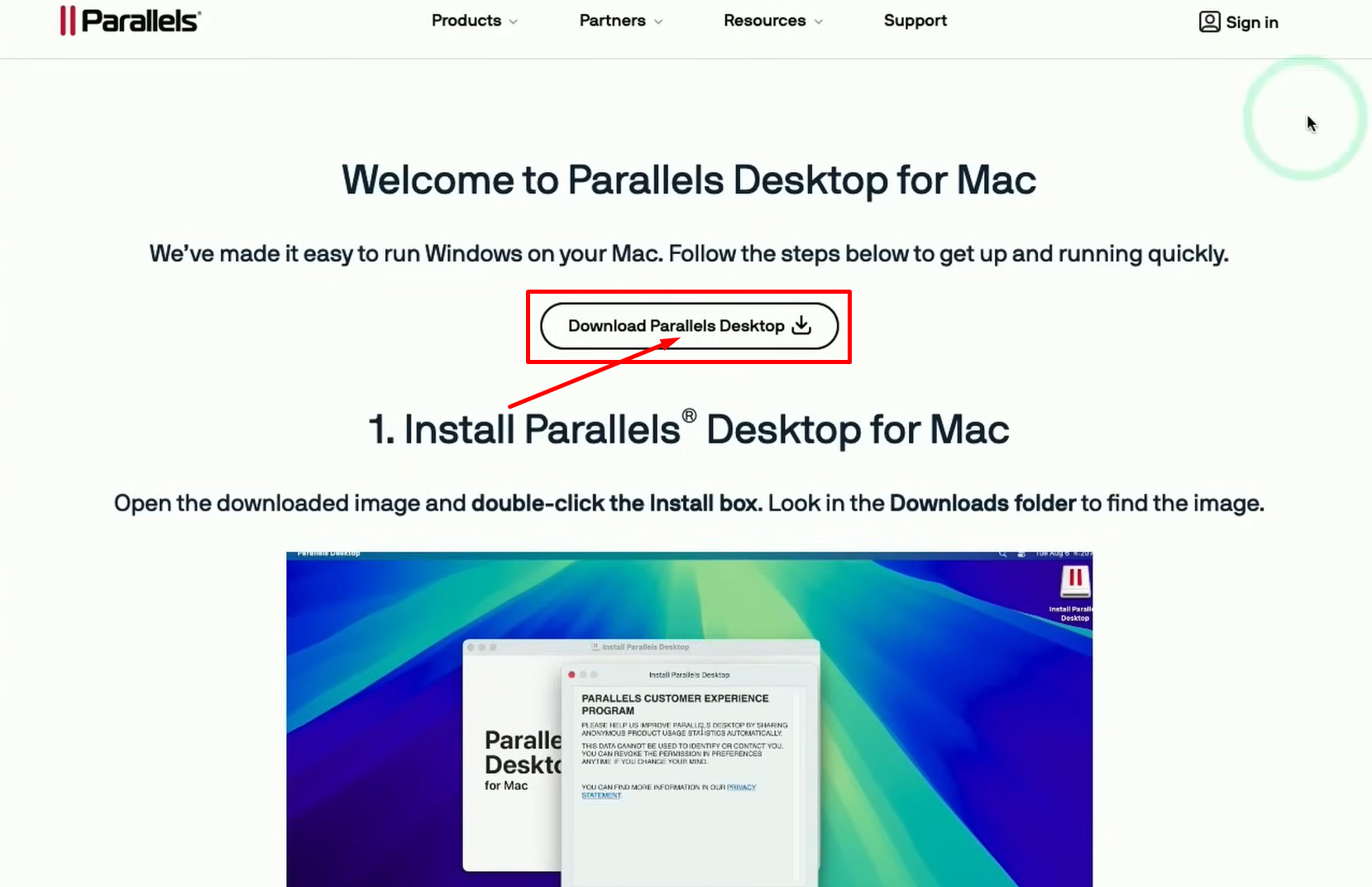
Step 3: Run the downloaded installer file in your system.
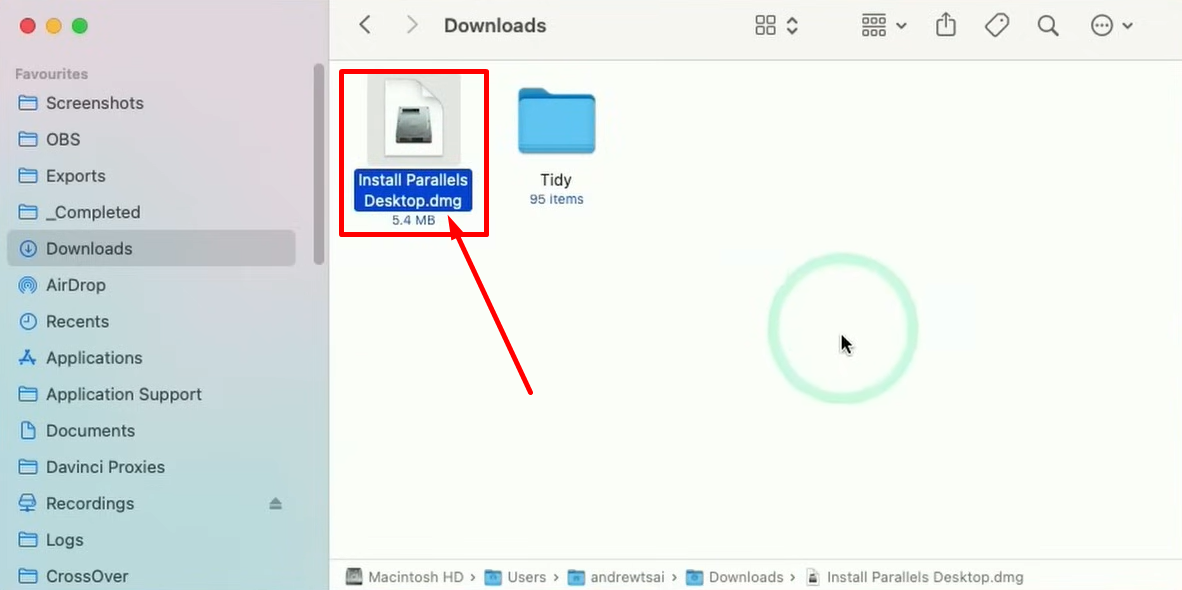
Step 4: Start the installation process.
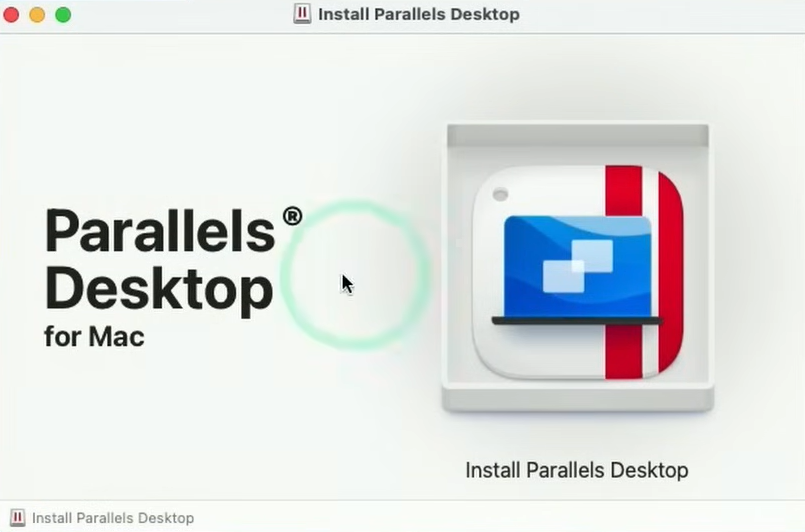
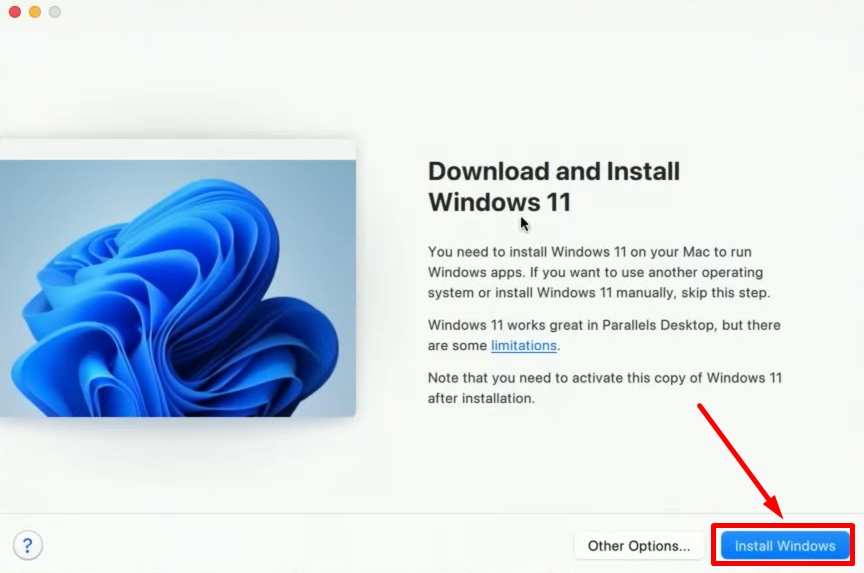
Step 5: Now click on “Install Windows”
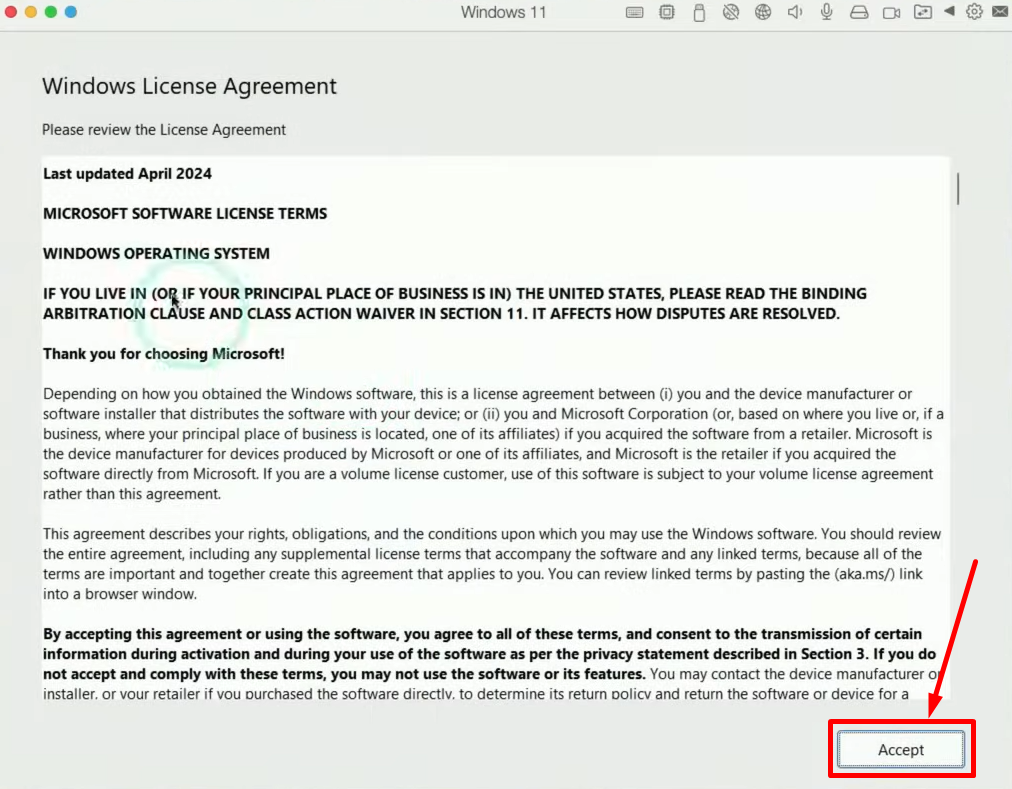
Step 6: Accept the Windows License agreement.
Step 7: Your Windows 11 will be successfully installed
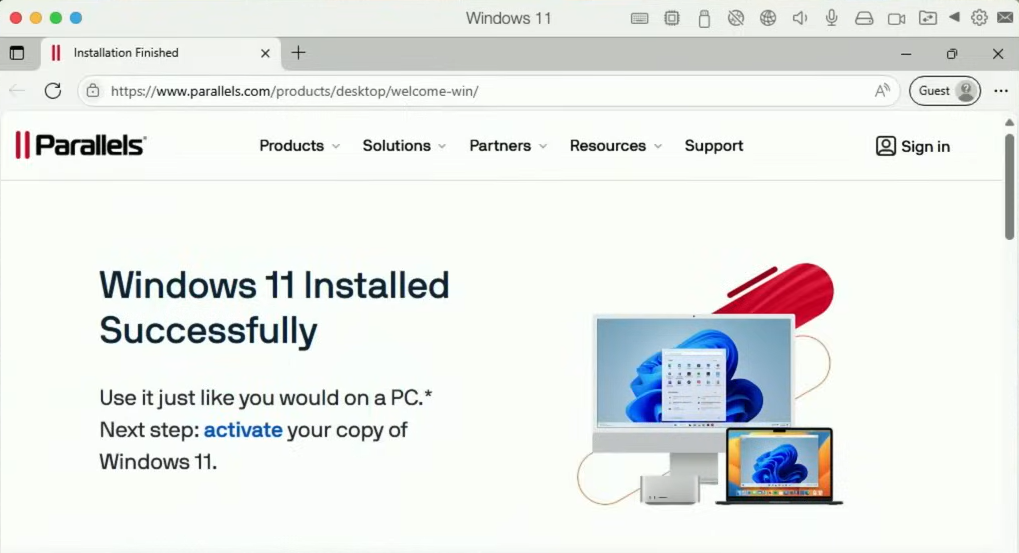
Enjoy your browsing with Windows 11.
Parallels Desktop v26 Pricing💰
Parallels Desktop offers several pricing plans to suit different user needs:
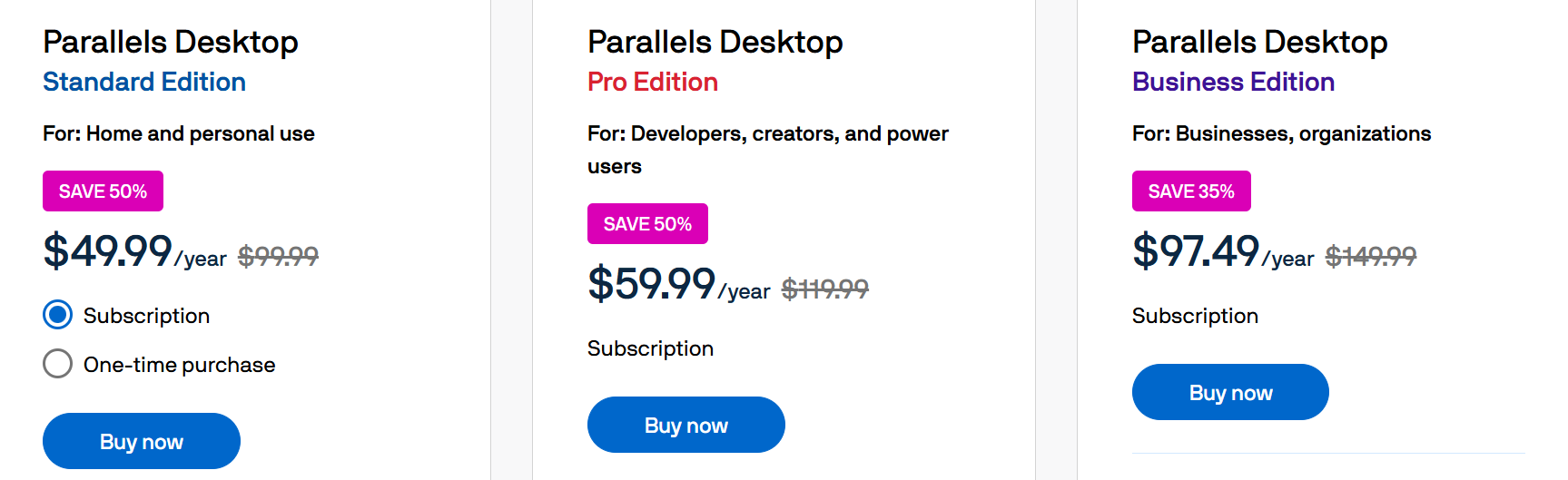
1. Parallels Desktop Standard Edition
- For home and personal use.
- Save 50%: $49.99/year (was $99.99).
2. Parallels Desktop Pro Edition
- For developers, creators, and power users.
- Save 50%: $59.99/year (was $119.99).
3. Parallels Desktop Business Edition
- For businesses and organizations.
- Save 35%: $97.49/year (was $149.99).
Parallels Desktop v26 Pros and Cons✅❌
| Pros ✅ | Cons ❌ |
|---|---|
| Cross-platform compatibility: Run Windows, Linux, and macOS on your Mac with ease. | Subscription-based pricing: Parallels requires an annual subscription, which might not be ideal for users who prefer a one-time payment. |
| Optimized for Apple Silicon: Enjoy fast performance on M1 and M2 Macs. | Resource-heavy: Running multiple OSes simultaneously can consume a lot of system resources, especially on machines with less RAM or older processors. |
| Official support for Windows 11: Authorized by Microsoft to run the latest Windows OS. | Running a virtual machine (VM) requires dedicating significant amounts of your Mac’s memory (RAM) and processor cores, in addition to what macOS needs. |
| User-friendly interface: Easy to install and use, even for beginners. | |
| High performance for demanding tasks: Enhanced graphics and resource management for gaming, development, and multimedia applications. | |
| Reliable customer support: Access to technical support when needed. | |
| Regular updates: Continuous collaboration with Microsoft and Apple ensures long-term compatibility. |
Parallels Desktop v26 vs v20: Key Upgrades and New Features Explained💪
| Feature | Parallels Desktop 26 | Parallels Desktop 20 |
|---|---|---|
| macOS Compatibility | Supports macOS Tahoe 26 and earlier for seamless integration with newer versions of macOS. | Compatible with macOS Sequoia and earlier, supporting older macOS versions. |
| Windows Compatibility | Optimized for Windows 11 (25H2 and earlier), ensuring better performance with newer Windows updates. | Supports Windows 11 (24H2 and earlier), with slightly older compatibility for Windows updates. |
| Mac VM Installation | Now supports IPSW image for macOS installation, offering a smoother and more flexible installation process. | Requires Apple ID sign-in for macOS installation, specifically for Apple Silicon Macs, adding convenience for Apple users. |
| Parallels Tools | New performance improvement tools for better system resource management and faster VM performance. | AI-powered tools that work offline, providing automation and boosting productivity even without internet access. |
| Management Portal | Introduced in the Enterprise Edition, now includes advanced admin tools for centralized control. | The Management Portal was also added in the Enterprise Edition, helping businesses streamline their IT operations. |
| DevOps Support | Enhanced DevOps support with GitHub Actions and CI/CD integration for continuous integration workflows. | DevOps support available with GitHub Actions and CI/CD integration, similar to the new version but with fewer features. |
Who Can Use Parallels Desktop v26?🔁
Parallels Desktop 26 is ideal for:
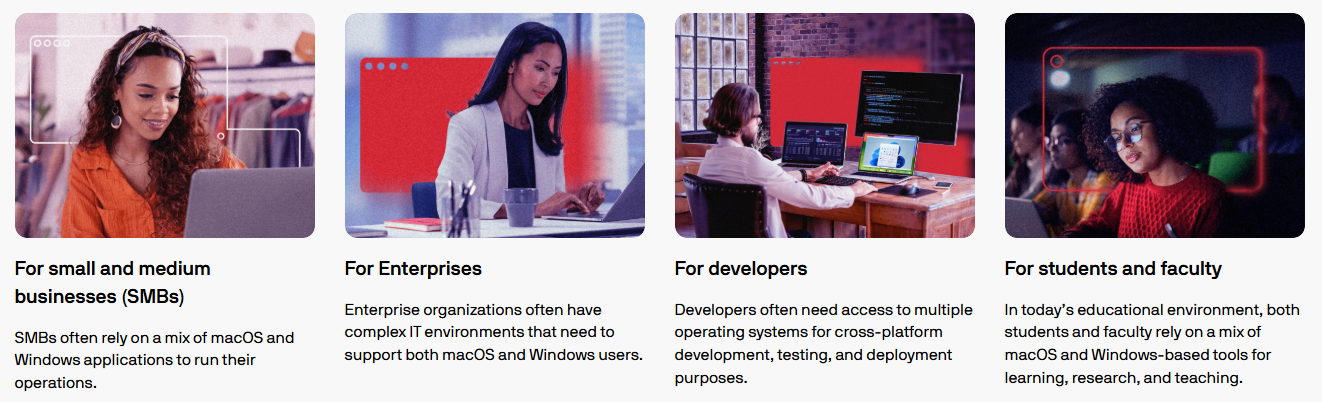
- Business professionals who need to run Windows-based applications on their Mac.
- Developers who need to test cross-platform applications or run Linux on a Mac.
- Casual users who want to run specific Windows programs without using a separate PC.
- Mac users who want a hassle-free experience of running multiple operating systems without rebooting.
Also Read: Parallels Review: Is It Best Mac & Windows Virtualization?
Customer Reviews and Testimonials

Many users praise Parallels for its reliability and ease of use, particularly for those running demanding applications like AutoCAD, Photoshop, or Microsoft Office.
Business users appreciate the seamless experience of integrating Windows with macOS and the ability to run Windows 11 on Apple Silicon Macs.
Conclusion: Is Parallels Desktop v26 Worth It?
Yes, Parallels Desktop 26 is worth the investment if you’re a Mac user who needs to run Windows, Linux, or multiple OSes.

With its seamless integration, official Windows 11 support, and optimized performance for Apple Silicon Macs, Parallels offers the best solution for cross-platform compatibility.
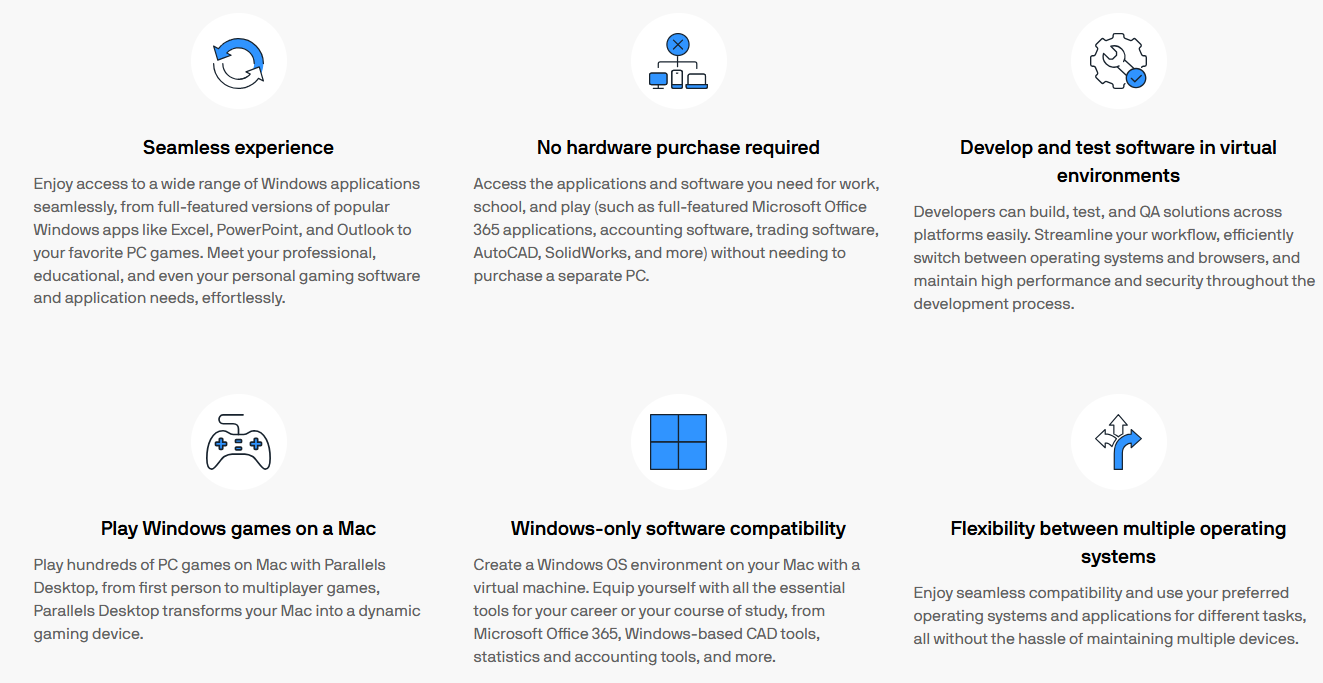
Whether you’re a professional, developer, or casual user, Parallels Desktop 26 ensures that your virtualized environments run smoothly, with full support from Microsoft and Apple.
It provides the flexibility and performance you need to get the most out of your Mac.
Sign Up Now and Get Started with Parallels Desktop 26!
FAQs
Yes, Parallels Desktop 26 is fully optimized to run Windows 11 on Macs with Apple Silicon (M1/M2 chips) seamlessly.
Absolutely! Parallels Desktop has a simple, user-friendly interface, making it easy for both beginners and experienced users to get started.
Yes, Parallels Desktop 26 supports Linux, allowing you to run various Linux distributions alongside macOS and Windows.
No, with Parallels Desktop 26, you can switch between macOS, Windows, and Linux without restarting your Mac.
Yes, Parallels Desktop 26 is fully compatible with the latest macOS versions, including macOS Ventura and macOS Sonoma, ensuring smooth performance.
